Handling Microsoft Graph API Errors: Tips & Tricks
Having trouble with Microsoft Graph API errors breaking your Teams automation? Here’s exactly what you need to know:
The 3 most common errors you’ll face:
- 401 errors: Missing or expired access tokens
- 403 errors: Wrong permissions or access rights
- 503/504 errors: Server timeouts and issues
Here’s what you need to check when errors pop up:
| Error Type | Quick Fix | Prevention |
|---|---|---|
| Authentication (401) | Get new access token | Check token validity (expires in 59 mins) |
| Permissions (403) | Add missing permissions | Use Find-MgGraphCommand to verify needed permissions |
| Rate Limits (429) | Wait and retry | Space out requests, check headers |
| Server Issues (5xx) | Retry with backoff | Monitor service status |
Must-do steps for every API call:
- Add error tracking with request IDs
- Include retry logic for 429 and 5xx errors
- Check rate limits in response headers
- Cache responses when possible
Pro tip: Use Graph Explorer (aka.ms/ge) to test API calls before writing code. It shows exactly which permissions you need and lets you see real responses.
Want automatic error handling? Tools like nBold handle all this in the background for Teams automation.
This guide covers everything from basic error codes to advanced handling strategies, with real code examples and fixes for Teams-specific issues.
Error Handling Checklist
Here’s how to fix Microsoft Graph API errors:
Check Access and Permissions
| Error Type | What to Check | How to Fix |
|---|---|---|
| 401 Unauthorized | Access token status | Check if token exists and is valid (expires in 59 minutes) |
| 403 Forbidden | Permission scopes | Get missing permissions from Microsoft Entra ID admin center |
| Missing consent | Admin approval | Get admin to approve application permissions |
PowerShell users can see their current permissions with:
(Get-MgContext).ScopesStatus Code Fixes
| Status Code | What It Means | What To Do |
|---|---|---|
| 400 | Wrong request format | Fix your request format and parameters |
| 401 | Bad/missing token | Get a new access token |
| 403 | Not enough permissions | Add the permissions you need |
| 429 | Hit rate limit | Back off and try again later |
| 500 | Server problems | Wait and retry |
| 503 | Service not working | Check if service is up |
Make Better API Requests
Your API calls need:
- Code to retry 429 and 5xx errors
- Error tracking for each call
- Rate limit checks in response headers
- Response caching where it makes sense
Understand Error Messages
Error responses come with this JSON:
| Field | Shows | How to Use It |
|---|---|---|
| code | Error type | Compare with known errors |
| message | What went wrong | Save for debugging |
| innerError | Extra details | Find root problems |
Work With Rate Limits
Graph API limits:
| Call Type | Max Allowed | What to Do |
|---|---|---|
| Standard calls | Depends on endpoint | Space out your requests |
| Batch calls | 20 per batch | Use smaller batches |
| Subscription updates | 4 at once | Put extra calls in a queue |
For /subscriptions , try the same request again if you get a 401 error – many users say this works.
Find and Fix Errors
Set Up Error Logs
Here’s how to set up Microsoft Graph activity logs to track API issues:
| Component | Requirements | Purpose |
|---|---|---|
| License | Microsoft Entra ID P1/P2 | Access to activity logging |
| Role | Security Admin or Global Admin | Configure diagnostic settings |
| Storage | Log Analytics workspace | Store and analyze logs |
| Permissions | AuditLog.Read.All or Directory.Read.All | Access log data |
Here’s what you’ll need for storage based on your tenant size:
| Users | Monthly Storage (GiB) | Monthly Events |
|---|---|---|
| 1,000 | 14 | 62,000 |
| 100,000 | 1,000 | 4,800,000 |
Check Request Details
Let’s look at what matters when you hit a Graph API error:
| Component | What to Check | Why It Matters |
|---|---|---|
| Headers | Authorization token | Prevents 401/403 errors |
| Response Time | Delivery delays | Events can take up to 2 hours |
| Error Fields | code, message, details | Shows exact error cause |
| Activity Type | HTTP request type | Helps track specific issues |
Here’s what a good error capture looks like:
{
    "error": {
        "code": "Request_ResourceNotFound",
        "message": "Resource ID not found",
        "details": [
            {
                "code": "ObjectNotFound",
                "target": "id",
                "message": "Specified ID invalid"
            }
        ]
    }
}
Quick tip : Wrap your Graph API calls in try/catch blocks. You’ll get better error messages that point to specific problems – like wrong object IDs or missing data in your requests.
One more thing: Don’t try to pull too much data at once. The Graph API works better with smaller, focused requests.
Teams-Specific Error Fixes
Here’s what you need to know about fixing Teams API errors:
Common API Errors
The most frequent Teams errors you’ll run into:
| Error Code | What It Means | How to Fix It |
|---|---|---|
| 53003 | Sign-in blocks resource access | Look at device registration and if the platform works with Teams |
| 403 Forbidden | Backend template fails | Double-check app permissions and team owner rights |
| 503/504 | Service down/Gateway timeout | Space out your requests and watch the Retry-After header |
Channel Problems
These pop up when working with channels and members:
| Problem | What You’ll See | What to Do |
|---|---|---|
| External Access | ”Can’t add external people to channel” | Turn on guest access in M365 Groups |
| Cross-Tenant | ”Can’t share channel with this org” | Look at your Microsoft Entra cross-tenant setup |
| Team Creation | ”Team owner must be provided” | Put owner info in your app context |
Template Setup
Your template might break if these settings aren’t right:
| Part | What to Set | Where to Find It |
|---|---|---|
| Guest Access | ”Let group owners add external people” | M365 admin center |
| Group Content | ”Let guest group members access content” | M365 admin center |
| Channel Policy | External user invites = “On” | Teams admin center |
When your template clone fails, you might see this:
{
    "error": {
        "code": "ResourceNotFound",
        "message": "Invalid version: teams",
        "innerError": {
            "request-id": "24ee407c-7baa-4e2c-a88a-77af52424150",
            "date": "2019-12-11T18:04:04"
        }
    }
}
Fix it fast : Add team owner info when you create teams:
{
    "template@odata.bind": "https://graph.microsoft.com/v1.0/teamsTemplates('standard')",
    "displayName": "Sample Team",
    "owners@odata.bind": ["https://graph.microsoft.com/v1.0/users('userId')"]
}
Pro tip : Set default owners in your templates – it stops that annoying “team owner must be provided” error before it happens.
Better Error Management
Here’s what you need to know about preventing and fixing Graph API errors:
Stop Errors Before They Happen
Want to avoid API errors? Check these items before making any calls:
| Check Type | What to Check | Why It Matters |
|---|---|---|
| Permissions | App permissions in Microsoft Entra ID | No more 403 errors |
| Time Zones | Task due dates and time settings | Keeps schedules in sync |
| Rate Limits | Current API usage vs limits | Stops 429 throttling |
| Access Tokens | Token expiration (59-min limit) | Keeps auth working |
Here’s what works:
- Switch to certificate-based auth (skip app secrets)
- Add a
client-request-idheader with GUID - Set up error logs with request IDs
- Watch those
Retry-Afterheaders
Fix Errors When They Pop Up
Here’s your error-fixing playbook:
| Error Code | What It Means | What To Do |
|---|---|---|
| 429 | Too Many Requests | Wait (check Retry-After header) |
| 503 | Service Down | Try again with new HTTP connection |
| 504 | Gateway Timeout | Drop heavy stuff like $search |
| 403 | Forbidden | Double-check Azure permissions |
Here’s some code that handles retries:
if (response.StatusCode == 429 || response.StatusCode == 503)
{
    var retryAfter = response.Headers.RetryAfter;
    await Task.Delay(retryAfter.Delta ?? TimeSpan.FromSeconds(10));
    // Retry request
}
Quick tip : nBold handles most of these errors automatically when you’re creating Teams templates.
To handle errors like a pro:
- Save those
request-idandDateheaders - Use Microsoft’s Graph utilities library
- Write clear error messages
- Keep an eye on your API stats
Here’s how to catch and fix Graph API errors:
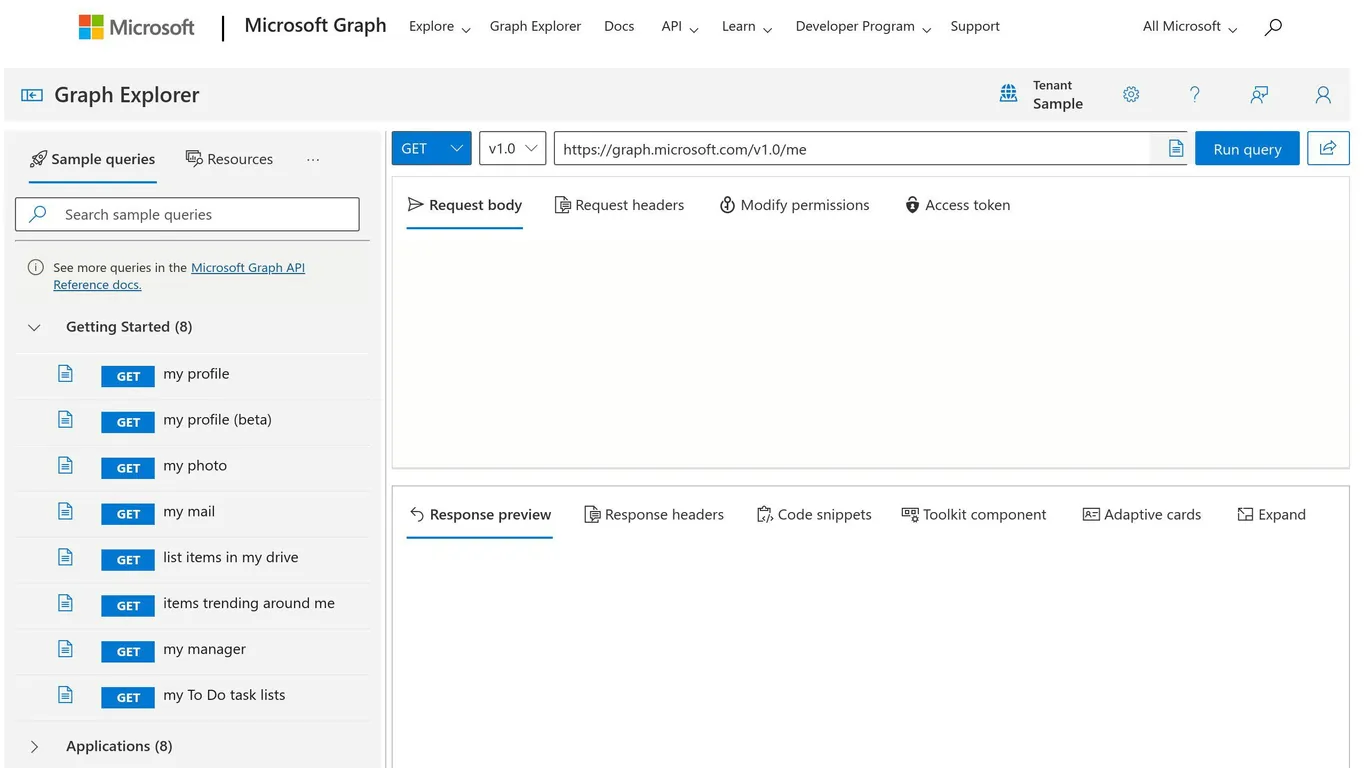
Graph Explorer (aka.ms/ge) lets you test API calls before you write any code.
| Feature | What It Does |
|---|---|
| Request Testing | Try out GET, POST, PATCH, DELETE calls |
| Code Generation | Get sample code in C#, Java, JavaScript, Go, PowerShell |
| Permission Check | Find out which permissions each API call needs |
| Response Analysis | See JSON responses and error messages |
| Headers View | Look at request/response headers to debug issues |
Want to see Graph API calls in action? Open your browser console (F12) while using M365 services.
Here are the top tools to spot problems:
| Tool | Main Focus | Starting Price |
|---|---|---|
| Sentry | Stack traces, error details | $26/month |
| Raygun | Deep diagnostics | $4/10k events |
| Testfully | API checks, test chains | $49/month |
| Datadog | Big-scale monitoring | $5/month |
| APIToolkit | Basic monitoring | Free up to 20k requests |
When you pick a monitoring tool, look for:
- Clear error dashboards
- API docs access
- Problem tracking to commits
- Context data
- Ready-made connections
- Self-hosted options
Here’s how to set it up:
- Add client-request-id headers to follow calls
- Keep request-id and Date headers from responses
- Set error alerts
- Watch your API usage vs rate limits
Want to catch issues fast? Tools like Testfully and Datadog can check your API every 30 seconds – way before your users notice anything wrong.
Summary
Here’s how to handle Microsoft Graph API errors:
| Error Type | Common Causes | Quick Fix |
|---|---|---|
| 401 Unauthorized | Missing/expired token | Check token validity, refresh if needed |
| 403 Forbidden | Insufficient permissions | Review required permissions with Find-MgGraphCommand |
| 404 Not Found | Invalid endpoint/resource | Double-check API endpoint URL |
| 429 Too Many Requests | Rate limit exceeded | Add retry logic with backoff |
| 500 Server Error | Backend issues | Wait and retry, check service status |
Here’s what you need for better error tracking:
- Add
client-request-idto each API call - Save
request-idandDateheaders from responses - Test API calls in Graph Explorer (aka.ms/ge)
- Run
Update-Module Microsoft.Graphto keep SDK current
For Teams automation scripts, follow these steps:
| Action | How to Do It |
|---|---|
| Error Logging | Set $ErrorActionPreference = "Stop" |
| Debug Mode | Use -Debug parameter |
| Error Capture | Apply -ErrorVariable |
| Permission Check | Run Find-MgGraphCommand |
| Status Monitoring | Monitor response codes and rate limits |
Tools like nBold help manage Teams template automation with built-in error handling. The app takes care of permissions and rate limits when you’re working with Teams templates.
Know these HTTP status codes:
| Code Range | What It Means |
|---|---|
| 2xx (200-299) | Success |
| 4xx (400-499) | Client errors |
| 5xx (500-599) | Server errors |
Your error responses should include:
- Error code
- Message details
- Troubleshooting steps
- Support contact info
About nBold for Teams
nBold makes Microsoft Teams automation work better by handling Graph API errors automatically. No more dealing with technical issues – it just works.
Here’s what you get:
| Feature | What It Does |
|---|---|
| Template Builder | Stops permission errors before they happen |
| Team Creation | Keeps you under API limits |
| IT Governance | Makes sure API calls work first |
| Third-party Integration | Fixes connection problems automatically |
The app handles the technical stuff in the background:
- Checks if you can access Teams before doing anything
- Makes sure you have the right permissions
- Stops you from hitting API limits
- Keeps track of errors so you can fix them
Plans and Pricing
Pick the plan that fits your needs:
| Features | nBold Platform (Quoted per rollout) | nBold CRM Automation (Quoted per rollout) |
|---|---|---|
| Error Logging | ✓ | ✓ |
| API Rate Management | ✓ | ✓ |
| Permission Control | ✓ | ✓ |
| Integration Error Handling | – | ✓ |
Volume and enterprise pricing available. Contact nBold for a custom quote.
Start Using nBold
It takes 30 seconds to get started:
- Open Teams
- Click Apps
- Type “nBold”
- Hit Install
- Follow the setup steps
That’s it. nBold handles the complex stuff while you focus on getting work done.
FAQs
How do you handle API error handling?
Here’s how to handle Microsoft Graph API errors:
| Error Type | How to Handle It | Example Response |
|---|---|---|
| 401 Unauthorized | Check access token validity | {"error": {"code": "unauthorized", "message": "Access token is expired"}} |
| 403 Forbidden | Verify permissions | {"error": {"code": "forbidden", "message": "Insufficient permissions to access resource"}} |
| 429 Too Many Requests | Add retry logic | {"error": {"code": "tooManyRequests", "message": "Request limit exceeded"}} |
Want better results? Do these things:
- Log your errors : Set up a system to track what goes wrong
- Test in Graph Explorer : Make sure your API calls work before going live
- Standardize errors : Keep your error message format consistent
- Add retries : Build in logic to handle temporary failures
Here’s what a proper error response looks like:
{
  "error": {
    "code": "badRequest",
    "message": "Cannot process request due to incorrect format",
    "target": "resource"
  }
}
When you get an error:
- Look at the HTTP status code
- Check the error message
- Find the error code
- Fix what’s wrong
- Test your fix
Pro tip : Microsoft Graph caps you at 2,000 requests per second. Break up big request batches to stay within limits.
Here’s what different status codes mean:
| Status Code | What It Means | What To Do |
|---|---|---|
| 400 | Bad request format | Fix request syntax |
| 404 | Resource not found | Check resource ID |
| 500 | Server error | Wait and retry |
| 503 | Service down | Try again later |