Set Up an nFlow Service Account (No Admin License Required)
nBold’s job is to make collaboration run itself — Teams, channels and lifecycle steps should appear the moment a business motion needs them, with no one clicking through the setup by hand. That only works if the automation has a trustworthy identity behind it: every Team nFlow creates, every channel or tab it adds, every step it runs has to execute as someone, and when that “someone” is tied to one admin’s personal login, the whole chain can break silently the day that admin changes roles or loses a license. nFlow now lets you set that identity yourself, from a single Microsoft sign-in, without asking IT for an admin license — so the connection stays a one-click renewal instead of a hidden point of failure.
What’s new
nFlow Settings now has a dedicated Service Account page. From here you can:
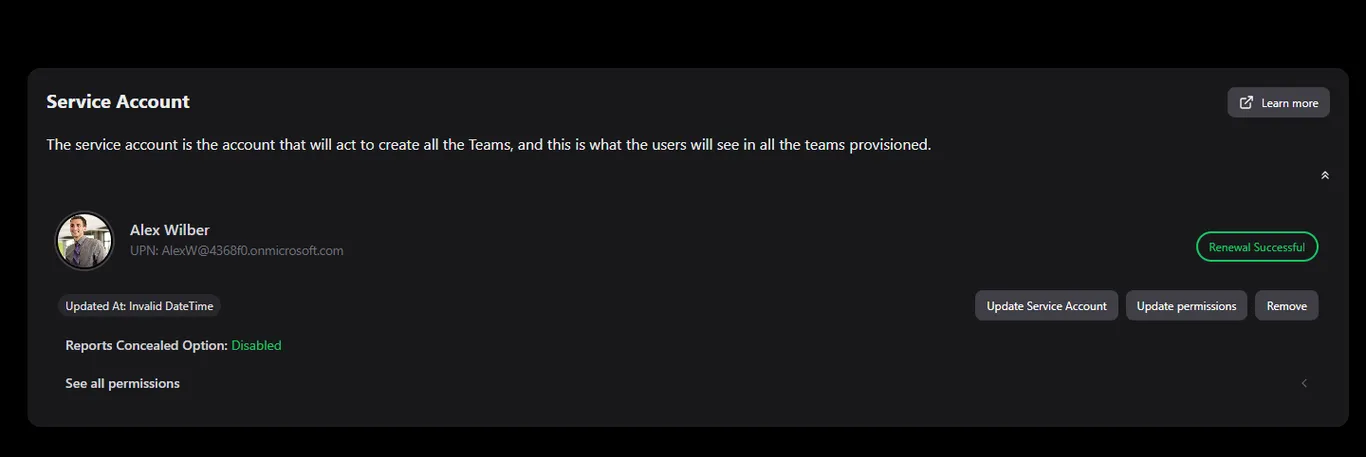
- See the current service account (if one is connected), its UPN, when it was last updated, and its renewal status.
- Connect or replace the service account with a standard Microsoft 365 sign-in — no admin role required on that user.
- Update permissions or remove the service account entirely, from the same screen.
How it works
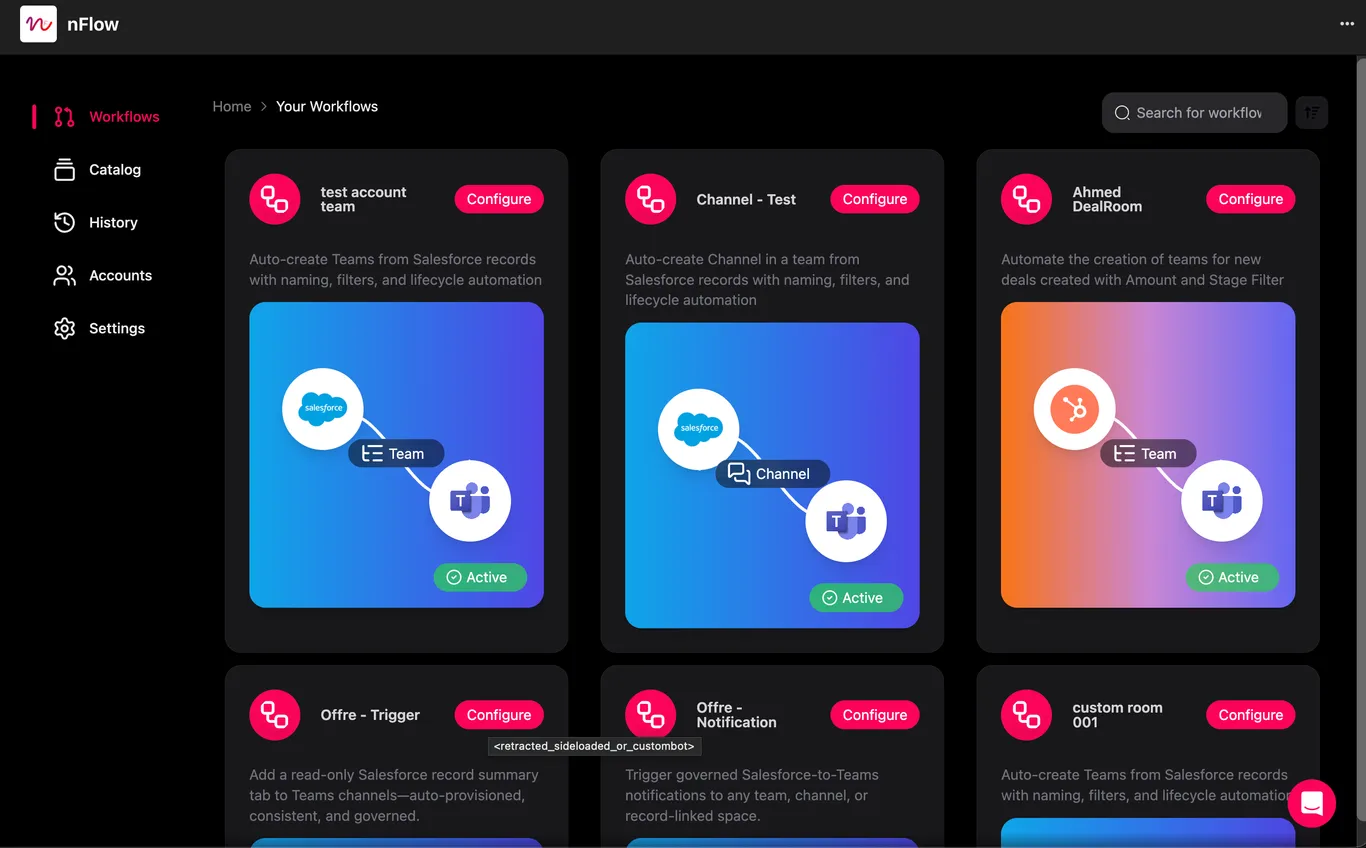
- In nFlow, go to Settings → Service Account. The page shows the current account (if any), its UPN, last-updated time, renewal status, and three actions: Update Service Account, Update permissions, and Remove.
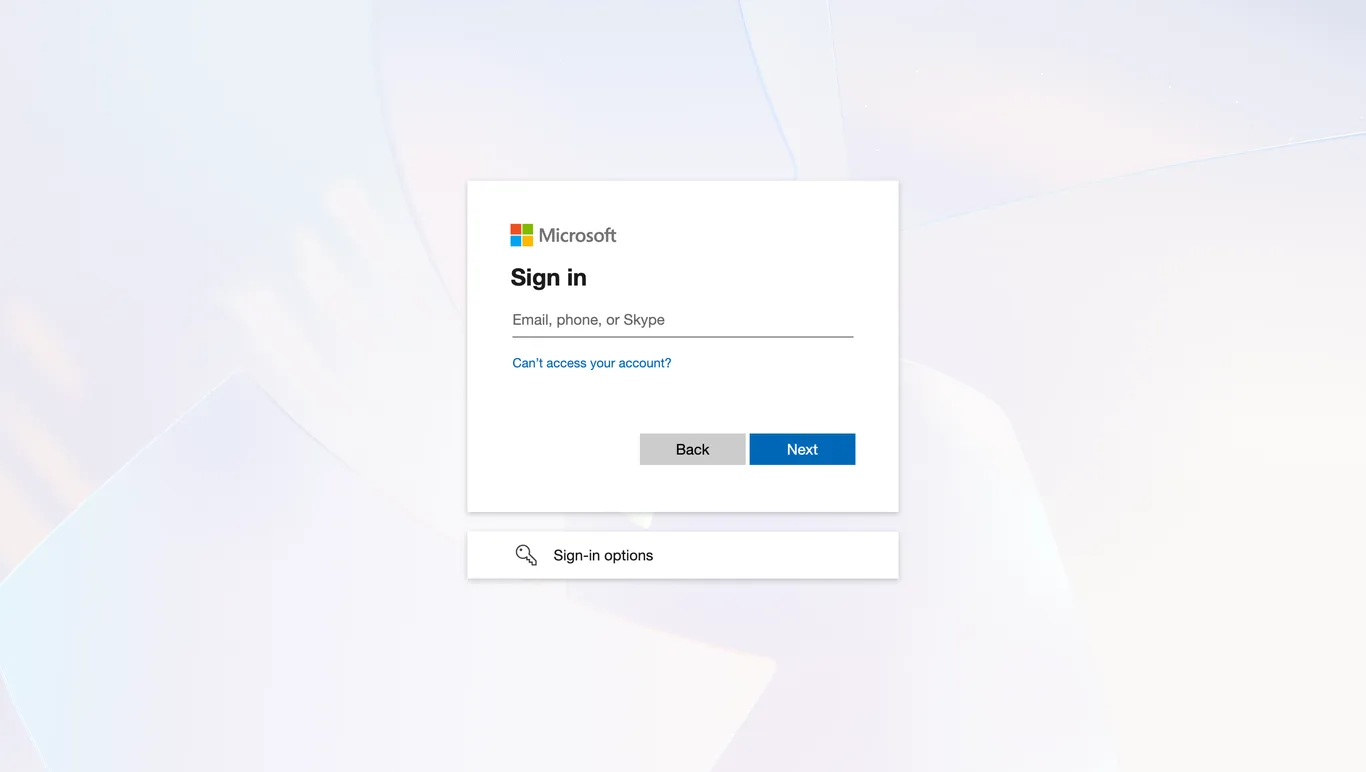
- Click Update Service Account to start the connection. You’re redirected to a standard Microsoft sign-in page.
-
Sign in with the Microsoft 365 user you want nFlow to act as. That user needs a valid Microsoft 365 license and access to Teams and SharePoint — but does not need to be an admin.
-
Once authentication succeeds, the Service Account section refreshes to show the user’s photo, UPN, and a Renewal Successful status, along with the permissions that user has inherited automatically.
From that point, nFlow uses this account to create Teams and channels, add apps or tabs, and execute lifecycle steps from your workflows — no further configuration needed.
Why it matters
Automated provisioning is only as reliable as the identity behind it. A service account tied to one admin’s personal credentials breaks the moment that admin changes roles, loses a license, or leaves the company — and workflows fail silently until someone notices. Putting the connection behind a self-service, one-click Microsoft sign-in means any authorized user can set it up or renew it in minutes, with a clear renewal status always visible, so your automations keep running instead of quietly stalling.
Related
See how this identity fits into the bigger picture of CRM-triggered provisioning on our platform and in From CRM Stage to Teams Execution. Want a walkthrough with your own tenant? Book a demo.