Beginner’s Guide to AI Collaboration Tools in Microsoft Teams
AI tools inMicrosoft Teams can save you time, boost productivity, and simplify teamwork. From automating tasks to enhancing communication, these tools are designed to make work more efficient. Here’s what you need to know:
- Key Benefits : Save 10+ hours/month, improve task accuracy by 68%, align projects 4x faster.
- Top Tools :
- Microsoft 365 Copilot : Summarizes meetings, enhances chats, and manages tasks.
- Power Automate : Automates repetitive workflows like notifications and approvals.
- AI Meeting Features : Real-time transcription, translation, and intelligent recaps.
- Getting Started : Update your Teams setup, enable security features, and train your team.
These tools are easy to set up and can transform how your team collaborates. Whether it’s smarter communication or automated workflows, Microsoft Teams’ AI features help you focus on what matters most.
How to Use Microsoft Copilot AI – Beginners Guide 2024
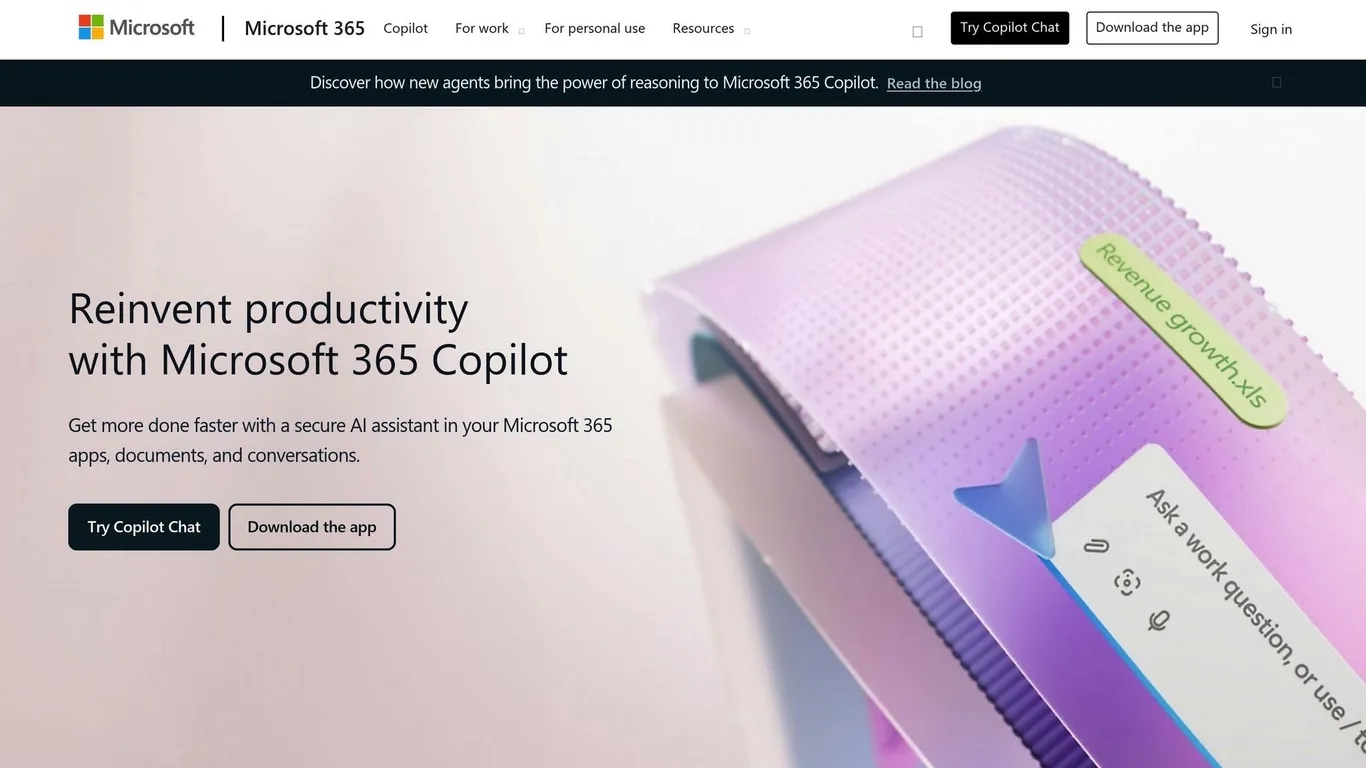
Microsoft 365 Copilot changes the way teams work together in Microsoft Teams. By leveraging Teams’ AI features, Copilot becomes a seamless part of your daily tasks. Here’s a breakdown of its main features and how to set it up.
Understanding Microsoft 365 Copilot
Copilot simplifies team communication and takes care of repetitive tasks. Key features include:
| Feature | Description |
|---|---|
| Meeting Insights | Automatically summarizes meetings and suggests follow-up actions |
| Chat Enhancement | Improves messages with context-aware recommendations |
| Call Recaps | Creates AI-generated summaries for VoIP and PSTN calls |
Setting Up Copilot in Teams
To get the most out of Copilot, setting it up correctly is critical. Follow these steps:
- Review and Prepare
Ensure your workspace is updated, and all files are current. Enable multi-factor authentication (MFA) for added security. - Access Configuration
Locate the Copilot icon in the Teams navigation menu or go to m365copilot.com. Confirm that all team members are using work accounts, not personal ones. - Security Implementation
Activate commercial data protection tools and review permission settings within your Teams environment.
“Copilot is designed to keep their data safe. Content shared with Copilot doesn’t leave your organization’s environment”.
Once these steps are done, you’re ready to take full advantage of Copilot’s features for better communication.
Copilot for Team Communication
Studies show users begin noticing improvements in productivity and meeting efficiency within just 11 minutes of using Copilot, with even greater results after 11 weeks.
Smart Meeting Support
- Processes meeting transcripts and chats to create actionable summaries
- Offers clear insights and next steps for better follow-through
Enhanced Chat Features
- Delivers context-aware suggestions and drafts aligned with past conversations
- Ensures messages remain consistent and relevant
Business Chat Integration
The Business Chat feature, accessible directly in Teams, supports real-time, informed decision-making by grounding discussions in up-to-date web data.
“Microsoft Teams is where work happens, and now we’re excited to announce new Copilot in Teams enhancements that will supercharge collaboration and make hybrid meetings even better”.
Power Automate changes the way teams handle repetitive tasks within Microsoft Teams, making automation simple and accessible. Here’s how you can make the most of this tool.
Power Automate Basics
Power Automate works seamlessly with Microsoft Teams to simplify repetitive tasks. It offers three main ways to create workflows:
| Workflow Type | Best Used For | Access Point |
|---|---|---|
| Pre-built Templates | Common team scenarios | Teams app store under “Workflows” |
| Custom Flows | Organization-specific needs | Power Automate designer in Teams |
| Message-based | Quick actions from chats | Message overflow menu (… ) |
These workflows operate within your organization’s default environment, ensuring secure and consistent execution.
Creating Simple Automated Tasks
Setting up basic workflows in Power Automate is straightforward and can significantly boost productivity. Here’s how to get started:
- Access Power Automate
Open the Workflows app in Microsoft Teams. This hub lets you manage all automation tools directly within Teams. - Choose Your Trigger
Select a trigger to start your workflow. Common options include:- Message reactions
- Updates to channel posts
- File changes
- SharePoint list updates
- Configure Actions
Decide what happens when the trigger is activated. For instance, when a Planner task status changes, Power Automate can send a notification card to a Teams channel, keeping everyone updated automatically.
Connecting with Microsoft 365 Apps
Power Automate shines when it connects Microsoft 365 apps, creating smooth workflows across your workspace.
| App Connection | Automation Example | Business Impact |
|---|---|---|
| SharePoint | Approval requests in Teams chat for list updates | Speeds up document processing |
| Planner | Posts task updates to Teams channels | Improves project visibility |
| OneDrive | Sends notifications for shared files | Enhances collaboration |
To make the most of Power Automate:
- Start with simple workflows that address everyday tasks.
- Use the Power Automate designer in Teams for custom workflows.
- Ensure the Workflows app is enabled in the Teams admin center.
- Test workflows before rolling them out to your team.
Power Automate turns routine tasks into efficient, automated processes, helping your team save time and focus on more meaningful work.
Microsoft Teams uses AI to make virtual meetings smoother and more efficient. From real-time transcription to automated summaries, these tools help participants stay engaged and organized.
Live Text and Language Tools
Teams’ live transcription feature captures spoken words as text in real time, complete with timestamps and speaker names. With support for 41 languages, it ensures accessibility for a global audience.
| Feature | Benefit | How to Enable |
|---|---|---|
| Live Transcription | Converts speech to text with speaker tags | Activate via the More Actions menu |
| Live Translation (Premium) | Translates speech into your chosen language | Available in meeting settings for Premium users |
| Language Selection | Enhances transcription accuracy | Set the language before starting the meeting |
For the best results, speakers should articulate clearly, and the correct language should be selected before the meeting begins. Transcripts are automatically saved to the meeting organizer’s OneDrive for Business, making them easy to access later.
These transcription features are complemented by advanced AI tools that simplify meeting documentation.
Meeting Notes and Follow-ups
Teams Premium offers Intelligent Recap, a feature that simplifies meeting documentation and follow-up tasks by:
- Creating detailed meeting summaries
- Highlighting key discussion points
- Color-coding sections in meeting recordings
- Tracking action items and assigning them to team members
“It’s like having a personal note-taker at every meeting.”
– Chanda Jensen, Senior Product Manager in Microsoft Digital
The AI Notes tab organizes all meeting details, giving participants quick access to:
| Content Type | Includes | Where to Find |
|---|---|---|
| Meeting Notes | Automatically generated summaries | AI Notes tab |
| Action Items | Tasks and deadlines | Follow-up Tasks section |
| Timeline Markers | Key moments and activity highlights | Meeting recording |
| Speaker Timeline | Visual speaker participation data | Interactive speaker bar |
To use AI-generated notes, enable the feature at the start of the meeting. While everyone can view the notes in real time, only organizers and presenters using the web or desktop app can manage this feature during the meeting.
“Microsoft Teams Intelligent Recap is a game-changer, especially for busy organizational leaders. Whether you need to follow up on tasks, share notes, or catch up on a meeting you missed, Intelligent Recap has you covered.”
– Claire Sisson, Principal Group Product Manager in Microsoft Digital
Incorporate AI tools into your daily tasks to streamline workflows. For meetings, make sure AI-generated notes are enabled to capture key discussions effectively.
| Daily Task | AI Tool to Use | Best Practice |
|---|---|---|
| Meeting Preparation | Copilot | Enable AI notes in meeting invites |
| During Meetings | Live Transcription | Start transcription at the beginning |
| Post-Meeting | Intelligent Recap | Review AI-generated summaries |
| Team Communication | Voice Isolation | Turn on for clearer audio |
Set up these features ahead of time to avoid disruptions. The Loop page with AI-generated notes can be updated anytime – before, during, or after meetings – making it easy to refine key points collaboratively.
If you encounter any issues, check the troubleshooting steps outlined below.
Fixing Common Problems
When operations hit a snag, try these solutions:
1. Sign-in Issues
Use your email to troubleshoot authentication problems via the Microsoft 365 admin center.
2. Performance Problems
Keep the Teams client updated. If issues persist, follow these steps:
- Uninstall Teams completely
- Delete the Teams folder located in %appdata%\Microsoft
- Reinstall Teams with administrator privileges
3. AI Feature Accessibility
Check with your IT administrator to confirm your organization’s licensing and permissions.
Getting Your Team On Board
For AI tools to deliver their full potential, team alignment and training are key.
“We use Teams to share information in real time. We are able to save a lot of meeting time and about 10 hours of prep time per event. It allows us to prioritize our work.”
Here’s how to encourage your team to embrace these tools:
| Phase | Action | Outcome |
|---|---|---|
| Introduction | Start with basic AI features | Build confidence |
| Training | Share practical use cases | Increase adoption |
| Implementation | Begin with small team meetings | Develop best practices |
| Expansion | Scale to larger meetings | Boost overall efficiency |
Highlight immediate advantages like automated meeting notes and real-time transcription. These features can cut down on manual tasks and make meetings more productive. Encourage your team to try features such as voice isolation and background noise suppression to see the difference for themselves.
Conclusion
AI tools are reshaping how teams collaborate within Microsoft Teams, offering measurable improvements in productivity and efficiency.
For instance, these tools can increase task accuracy by 68% and save users more than 10 hours each month. By utilizing features like Microsoft 365 Copilot and Power Automate, teams can streamline workflows and speed up project alignment by up to four times when used effectively.
Notable benefits include:
- Task Automation : Saves over 10 hours monthly
- Enhanced Communication : Improves productivity by 70%
- Efficient Meetings : Speeds up project alignment by 4x
To maximize these advantages, tailor AI tools to your business needs while maintaining strong data privacy and security measures. As adoption grows, teams can gain the skills needed to fully integrate AI into daily operations, driving meaningful productivity improvements.