Reclaim SharePoint Storage in Bulk: Delete File Versions Across Teams
Governing collaboration at scale isn’t just about how a workspace gets set up — it’s about keeping the whole estate healthy long after that. Every file saved in a Microsoft Teams channel lives in a SharePoint document library, and every edit quietly adds another version to its history; nobody deletes the old ones, so across hundreds of workspaces that history balloons into real storage cost, and cleaning it up site-by-site simply doesn’t scale. Bulk > Delete File Versions (Beta) turns that manual slog into one job: reclaim storage across as many teams as you want in a single background run, and get back an exact report of what it saved, per team and per file.
What’s new
- A new Delete File Versions action in Bulk: select any number of teams and trim their file version history in one pass.
- You choose how many recent versions to keep per file — older versions beyond that number are deleted.
- The cleanup runs as a background job, so it doesn’t block you or lock the files while it’s working.
- You get an email when the job finishes, plus a full report of storage reclaimed, per team and per file.
How it works
-
Open the nBold app in Microsoft Teams and go to Bulk from the top-right menu.
-
Use search and filters (template, owners/members, last activity, etc.) to find the teams you want to clean up, and select them with the checkboxes.
-
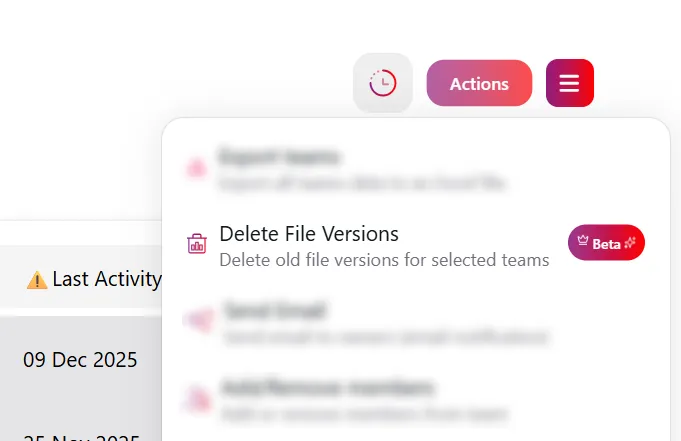
Click Actions and select Delete File Versions. This action is currently in Beta.
-
In the modal, keep Keep Recent Versions enabled and set Keep last versions to the number of most recent versions you want to retain per file — for example,
2. Click Delete.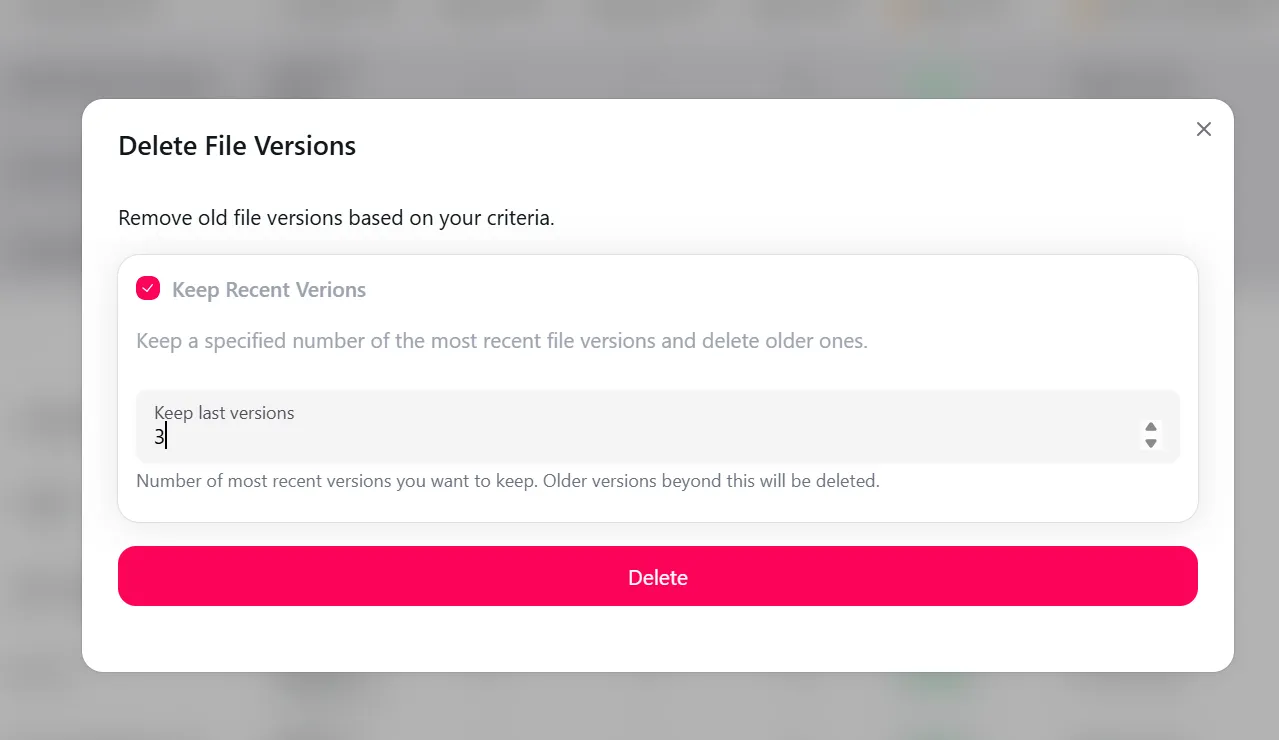
-
The job runs in the background — depending on how many files and versions are involved, this can take anywhere from a few minutes to a few hours. You can track progress from the History page, and you’ll get an email notification when it completes.
-
Open Full Reports from the completed job to see the Storage Cleanup Summary: total space saved across all teams, per-team totals, and a per-file breakdown of space saved and versions deleted.

A few things worth knowing before you run it at scale: start with a small batch of teams to validate your “keep last versions” setting, keep at least 2–5 versions for anything like contracts or project documentation, and be aware that files under retention or legal hold in Microsoft 365 may not lose any versions — so savings there will be lower than expected.
Why it matters
Old file versions are invisible until someone has to explain a SharePoint storage bill. They don’t show up in any dashboard you check day-to-day, and no single team is ever “at fault” — the cost is just the sum of years of routine edits across your entire Microsoft 365 estate. Running one background job across every team you manage, instead of asking each team owner to clean up their own files, turns an invisible tenant-wide cost into a single action with a number attached to it — proof of exactly how much storage you got back, and from where.
Related
See how storage cleanup fits into a broader governance strategy for your Microsoft 365 estate on Governed Microsoft 365. If you want to see Bulk actions like this one in action, book a demo.