How to Collaborate with People Outside Your Organization with Microsoft Teams
Collaboration rarely stops at the edge of your organization. Contractors, clients, agencies, consultants, and partners all need a way into the conversation — and Microsoft Teams gives you three distinct ways to bring them in, each with a different security and governance trade-off.
The trouble is that most people only know one of them. They invite everyone as guests, or they assume external chat is all that’s available, and they miss the option that actually fits the project. This guide explains external access, guest access, and shared channels (Teams Connect) — what each one allows, how to set it up in 2026, and how to keep external collaboration secure.
Quick answer: Microsoft Teams offers three ways to work with people outside your organization. External access lets your users chat, call, and meet with people in other Microsoft 365 organizations — no team membership, no file access. Guest access invites someone into a specific team with a Microsoft Entra B2B guest account, so they can collaborate on channel files almost like a member. Shared channels (Teams Connect) invite external people into a single channel using B2B direct connect — without creating guest accounts in your tenant. Choose external access for conversations, guest access for full teamwork, and shared channels for ongoing, compliant partner collaboration.
External access vs. guest access vs. shared channels at a glance
| External access | Guest access | Shared channels (Teams Connect) | |
|---|---|---|---|
| Best for | Chat, calls, and meetings with other orgs | Bringing someone into your team | Ongoing collaboration with a partner org |
| Account created in your tenant | None | Microsoft Entra B2B guest account | None (B2B direct connect) |
| Can access your team’s files | No | Yes (in the team they join) | Only the shared channel’s files |
| Scope of access | 1:1 / group chat & meetings | The whole team they’re added to | A single channel |
| User identity | Their own org | A guest identity in your org | Their own org (home credentials) |
| Underlying technology | Federation | Microsoft Entra B2B collaboration | Microsoft Entra B2B direct connect |
| On by default | Yes (all domains) | No (admin must enable) | Yes internally; external sharing needs setup |
Sources: Microsoft Learn — external & guest access and shared channels.
External access: chat and meet across organizations
External access (federation) lets people in your organization find, call, chat, and set up meetings with people outside it who use Teams or Skype for Business Server. Those people are not members of any of your teams — you can communicate with them, but they can’t access your channels, files, or other resources.
What external access allows — and what it doesn’t
According to Microsoft’s comparison, with external access your users can:
- Chat and call someone in another organization
- See whether they’re available and view presence
- Search for people in other organizations (by email or SIP address)
- Use @mentions in 1:1 chat between Teams Only users in different organizations
But your users can’t share files with external-access users, and external-access users can’t access your Teams resources or see the phone numbers of dial-in meeting participants.
Note: Starting May 5, 2025, Skype consumer interoperability with Teams was retired and its policies deprecated. You can still communicate with people outside your organization through Teams external access.
How to turn on and configure external access
External access is enabled by default and open to all domains. To review or restrict it in the Microsoft Teams admin center:
- Go to Users > External access.
- Choose how open you want to be: allow all external domains (the default), allow only specific external domains, block specific domains, or block all external domains (which turns external access off).
- Under Teams accounts not managed by an organization, decide whether your users can talk to people using personal/unmanaged Teams accounts, and whether those people can start the conversation.
For granular, organization-by-organization control, Microsoft now recommends managing external meetings and chat through trusted organizations and cross-tenant settings.
Guest access: bring someone into your team
Guest access adds a person from outside your organization to a specific team, where they can chat, call, meet, and collaborate on files — nearly all the capabilities of a native member. Guests are added to your Microsoft Entra ID as B2B collaboration users and must sign in with that guest account.
How to turn on guest access
Guest access is off by default. To enable it in the Microsoft Teams admin center:
- Go to Users > Guest access.
- Set Allow guest access in Teams to On.
- Toggle the specific capabilities guests can use — chat, making calls, screen sharing, Meet Now, deleting/editing messages — then Save.
Because guest access depends on settings across Microsoft Entra External ID, Microsoft 365 Groups, and SharePoint, changes can take time to propagate. Plan for guest access holistically rather than just flipping the Teams toggle.
Adding and removing a guest
Only team owners can add guests to a team. From within Teams:
- Select the team, choose More options (…) > Add member.
- Enter the guest’s email address.
- Select Edit guest information to give them a display name, then Add.
The guest receives a welcome email and, if they don’t already have a Microsoft account, will be prompted to create one. When a project ends, remove the guest from the team’s Members list — and, for a clean offboarding, have an admin review the guest account in Microsoft Entra ID so access doesn’t linger.
What guests can do
By default, guests can participate in channel conversations, private chats, calls and IP video, group chats and meetings, share and access channel files, use @mentions and Meet Now, and (if the owner allows) create channels. Teams admins can disable any of these to tighten what guests can reach.
Shared channels (Teams Connect): collaborate without guest accounts
This is the option most teams overlook — and often the best one for ongoing partner work. Shared channels, part of Microsoft Teams Connect, let you invite people from another organization into a single channel using Microsoft Entra B2B direct connect. The key difference from guest access: no guest account is created in your tenant. Each external participant keeps working under their own organization’s identity and policies, and they see only the shared channel — never the rest of the parent team. Microsoft puts it plainly:
“With B2B direct connect, users from both organizations can work together using their home credentials and a shared channel in Teams, without having to be added to each other’s organizations as guests.” — Microsoft Entra documentation
Why shared channels are different
- No directory clutter or offboarding risk — because there’s no guest object in your Microsoft Entra ID, you’re not holding the partner’s user accounts (and they’re not holding yours).
- Each side stays in its own tenant. Participants don’t have to switch tenants or sign in to your org; they collaborate with their home credentials.
- Dedicated, isolated SharePoint site. Each shared channel gets its own SharePoint site, so files are restricted to channel members only — even the parent team’s owners can’t see them unless they’re members.
- Host-organization policies apply. Conditional access, DLP, retention, sensitivity labels, and communication compliance from your organization govern the channel.
How to set up external shared channels
Shared channels are enabled by default inside your org, but sharing them externally takes deliberate configuration:
- Configure cross-tenant access settings in Microsoft Entra ID — add the partner organization and enable B2B direct connect for both inbound and outbound. Both organizations must do this; it’s a mutual trust relationship. See Microsoft’s guide to collaborating with external participants in a channel.
- Set your channel policies to control who can create shared channels, share them externally, and participate in external shared channels.
- Create the shared channel (only team owners can), then share it with specific people or an entire team. When adding an external participant who also happens to have a guest account in your org, search on
ext:user@domain.comto pick their organization account rather than the guest one.
When to choose shared channels
Reach for shared channels when you have a continuing relationship with a partner organization — a joint project, a supplier, an agency — and you want a secure, persistent space governed by your policies without managing guest lifecycles. For one-off meetings or someone who needs to be deep inside an existing team, guest access is still the right call.
Putting it into practice: chat, meetings, and files
Chatting. To chat with an external user, start a new conversation and enter their email address. If they’re new, select Search [email address] externally — Teams locates them, tags them as external, and you can start chatting. Chatting with a guest works exactly like chatting with internal staff.
Meetings. The simplest way to meet with people outside your organization is to add their email address as an invitee in the Teams calendar or an Outlook invite. People who don’t use Teams can join from a web browser — no install required.
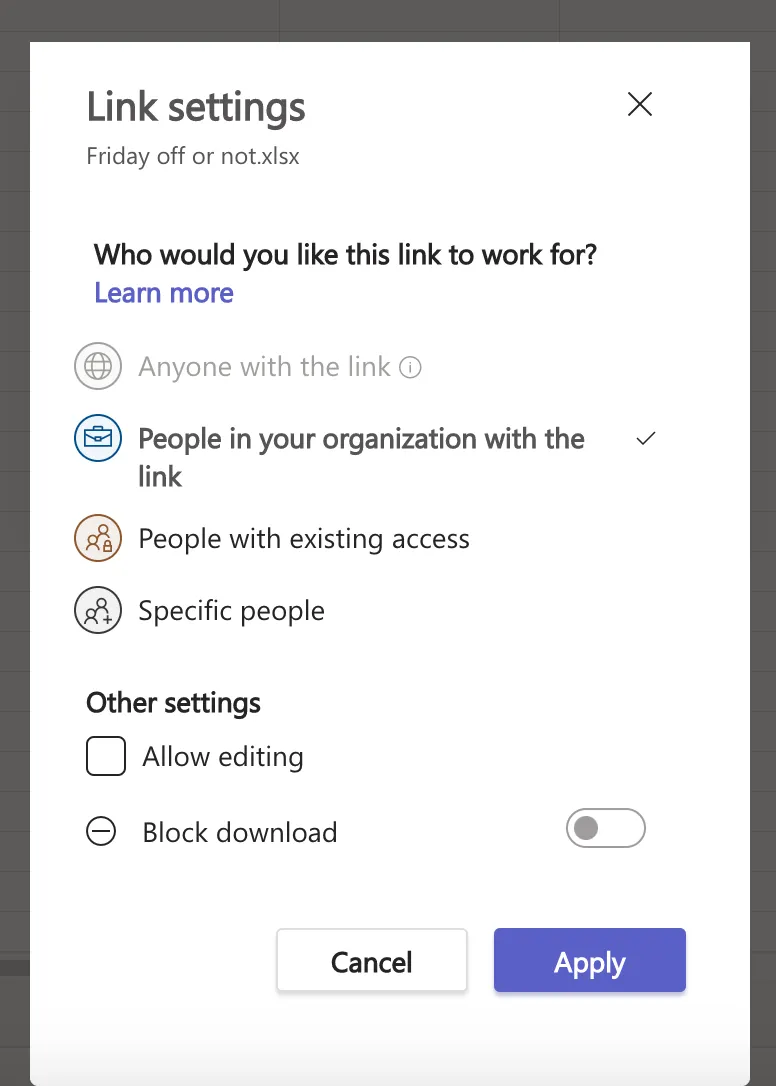
Files. Guests collaborate on documents like any team member. To share a single file with an external user who isn’t a guest, open the document, select Share > Copy link, change the link setting to Specific people, enter their email, and (optionally) allow editing. Microsoft emails them a verification code before they can open it.
Security and governance for external collaboration
Opening Teams to outsiders raises real risks — uncontrolled sharing, data leakage, and orphaned access. The scale is easy to underestimate: a 2026 analysis of enterprise data found that 16% of an organization’s business-critical data is overshared — averaging roughly 802,000 files per organization — and 17% of those at-risk files were shared with external third parties (Concentric AI Data Risk Report, 2026). Microsoft Teams divides external collaboration into permission tiers precisely so you can keep control. A few essentials:
- Use cross-tenant access settings as your front door. Rather than leaving federation wide open, define which organizations you trust for external access, B2B collaboration (guests), and B2B direct connect (shared channels). This is now the central control plane in Microsoft Entra ID.
- Apply Conditional Access to external identities. For shared channels, supported conditional access policies from the host organization apply to B2B direct connect users — require MFA or a compliant device for guest and external users.
- Layer Microsoft Purview controls. DLP, retention policies, sensitivity labels, information barriers, and eDiscovery all extend to guests and shared channels, with the channel inheriting the host/parent policy.
- Grant least privilege. Enable only the guest capabilities a project actually needs, and decide deliberately who can invite guests via the External collaboration settings in Microsoft Entra ID.
- Disable external sharing for sensitive sites. Keep confidential files and folders off any externally shared surface.
Learn more about Microsoft Teams security best practices.
Keep external collaboration consistent at scale
Knowing the three methods is one thing; applying them the same way across hundreds of teams is another. When every team owner sets up guests, channels, and sharing differently, governance erodes fast. This is where standardized Microsoft Teams templates help: nBold lets you provision teams with pre-defined channel structures, naming conventions, membership, and guest/sharing settings baked in — so external collaboration follows policy by default instead of by hope.
Conclusion
Choosing how to collaborate outside your organization comes down to the depth of access you need. Use external access to talk to other organizations, guest access to bring someone fully into a team, and shared channels for ongoing, compliant partner work without the overhead of guest accounts. Match the method to the scenario, control it through cross-tenant access settings, and back it with Conditional Access and Purview — and you can open Teams to the outside world without opening your data to risk.