How to Prevent Microsoft Teams Sprawl Without Killing Adoption
To prevent Microsoft Teams sprawl, govern the moment a team is created instead of policing teams after the fact. Standardize how teams are named, control who can create them (with an approval step), set membership and ownership rules, apply a lifecycle policy that archives or deletes inactive teams, and periodically run bulk cleanup on what already exists. Apply all of this through pre-approved templates so the rules are enforced automatically — users still self-serve, IT keeps control, and adoption doesn’t suffer.
The 6 steps to prevent Teams sprawl
- Set a naming convention so every team is consistent and discoverable.
- Control who can create teams — behind an approval workflow instead of a blanket lockdown.
- Set membership and ownership rules so no team is left orphaned.
- Apply a lifecycle policy that moves inactive teams to archive, then delete.
- Provision every team from a governed template so the rules apply at creation, automatically.
- Run bulk remediation on the sprawl you already have.
Each step is expanded — with the exact Microsoft 365 and nBold controls — in How to prevent Microsoft Teams sprawl below.
Microsoft Teams is one of the fastest-growing collaboration tools there is, having surpassed 320 million monthly active users (Microsoft, October 2023). Its multiple functionalities fill the communication and collaboration gap that many organizations experience in remote and hybrid operations. This makes it an attractive tool for both small and large businesses. And while increased team creation is a great indicator of successful adoption, when done uncontrollably it creates Microsoft Teams sprawl that poses governance and security challenges.
What’s Microsoft Teams sprawl and why is it a problem?
Microsoft Teams sprawl is the uncontrolled proliferation of teams — many with no clear purpose, no active owner, or no real use — that clutters the workspace and makes collaboration harder rather than easier.
When users discover they are free to use Teams the way they see fit, you usually see a great number of teams created on demand with no supervision or governance in place. This leads to sprawl: an extensive number of teams with no clear purpose.
However, it’s important to highlight that simply creating many teams is not bad per se. It’s when they’re not properly created and used that you actually have an issue. Let’s figure out what exactly constitutes teams sprawl.
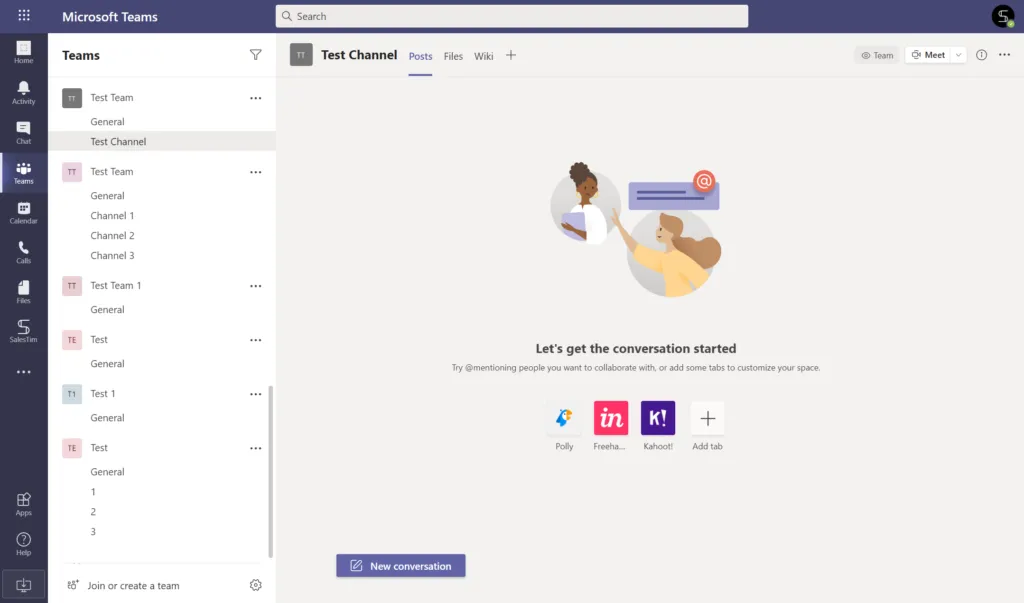
Test teams
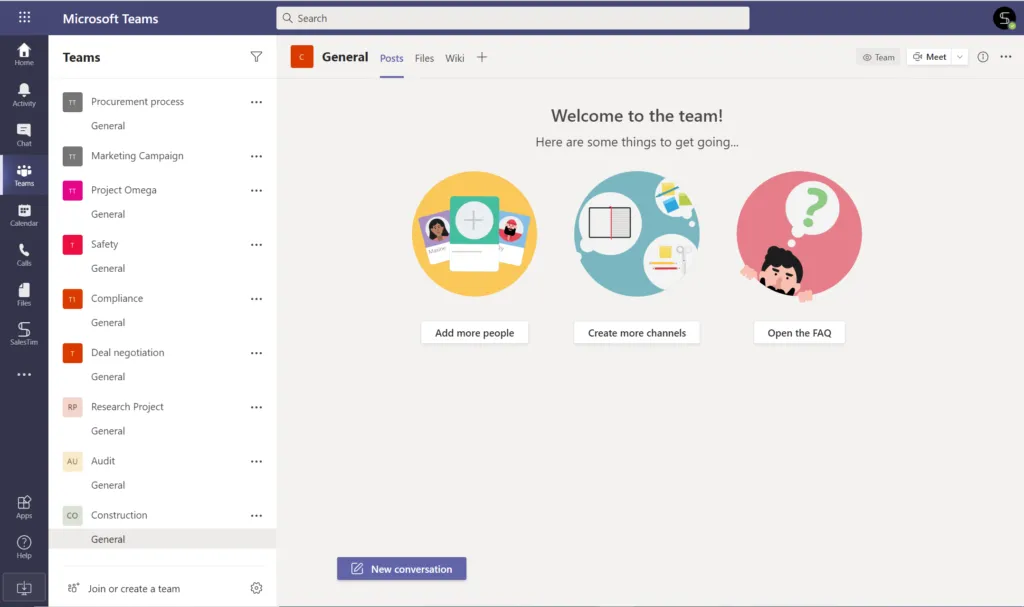
It usually starts with creating ‘Test teams’ that users make to better understand the tool and discover all its capabilities. They don’t have any purpose other than trying out the app. The problem is that you can end up having hundreds if not thousands of Test teams that will clutter your workspace.
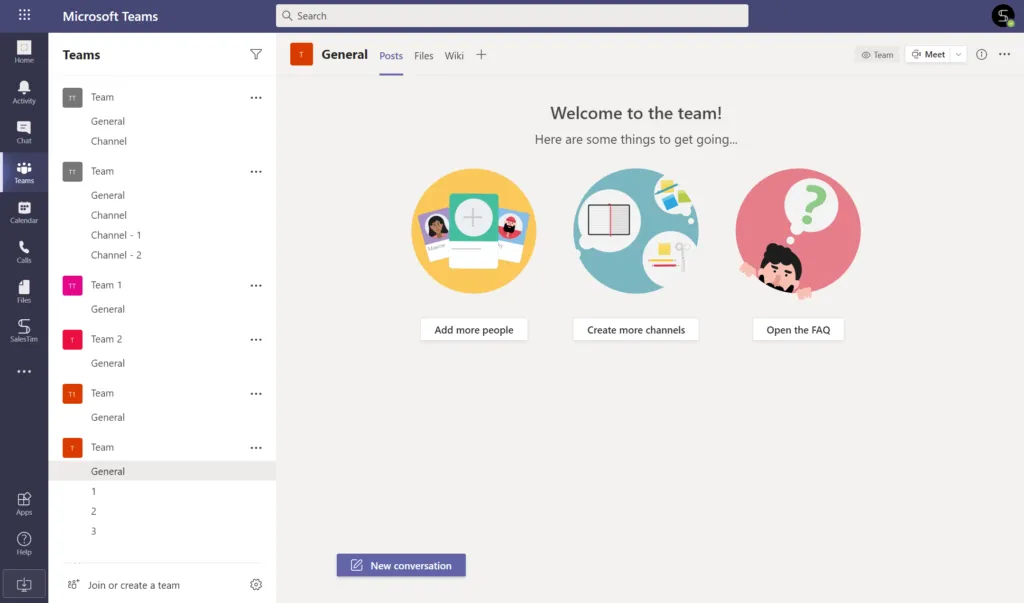
‘Team’ teams
Calling a team ‘Team’ is not just a tautological error. It creates inconsistency, making it almost impossible to navigate through multiple teams with a similar name. It inevitably hampers team productivity, making users resort to other solutions and, consequently, impeding the whole adoption process.
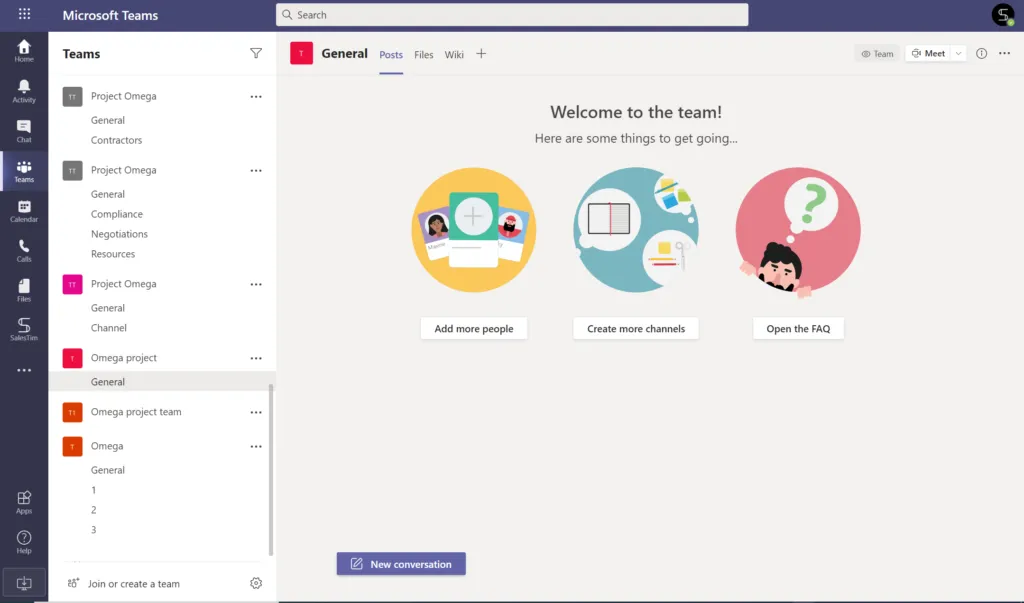
Too many teams on the same topic
When everyone can create a team, there’s usually little coordination over who is in charge of the process. As a result, you may get too many teams on the same topic. If you’re lucky, one of them will indeed be used to work on a project. Worst case scenario, however, is that elements of the same project will be scattered around numerous teams, creating confusion and chaos.
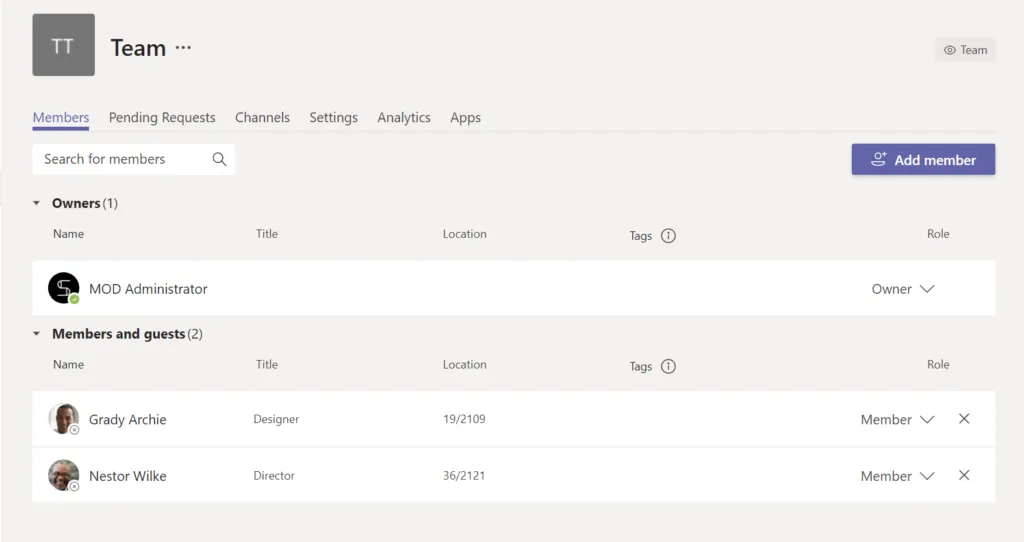
Teams with few users
If not well-informed about the purpose of teams, your employees may end up creating tons of teams with only a couple of members. Most of the time these are not necessary, and the topic that they were created for could be addressed in a specific channel or even a group chat.
Many teams with only a General channel
Another typical team that contributes to teams sprawl is the one that has only the General channel created by default. In most cases, if your users only use one channel to work on a certain topic, there was no need to create an entire team for that.
All the above-mentioned teams constitute teams sprawl as they’re underused and do not serve the purpose of effective collaboration.
Reasons behind Microsoft Teams sprawl
Before we head to solutions, it’s important to understand what causes Microsoft Teams sprawl in the first place.
Deployment of Microsoft Teams in a rush
When deploying a new digital tool in a rush, complications are inevitable. Change management is a complex process that requires preparation and a strategy. Skipping any of the required steps may hinder the adoption process — in our case, by promoting teams sprawl.
If you’d like to learn about Teams adoption, we invite you to read our series of articles on Microsoft Teams Adoption Strategy.
No governance
If you don’t set up governance policies for Teams, then teams sprawl should not come as a surprise. Without rules and structure there is bound to be a lack of organization. And it’s common: in an AvePoint survey, 75% of organizations said they deployed Microsoft Teams without proper governance or security in place (AvePoint, 2021) — which is exactly the condition sprawl grows in.
It’s essential to at minimum regulate who can create teams. This will minimize the number of dead teams, set up a naming convention for better structure and discoverability, and add approval workflows. There are multiple points to consider when establishing Teams governance — learn more in our guide to Microsoft Teams governance best practices.
Lack of training
Figuring out all the capabilities of Microsoft Teams can be challenging, and your employees require continuous training to better understand the technology. The reason why your users create Test teams proves the point — they simply do not know how to use them properly.
In fact, when users are duly trained and informed, they become more productive too, since they don’t waste time figuring out how certain Teams features work.
Lack of communication on Microsoft Teams use cases
If your employees have no idea how they can use Teams to improve their work, it’s a red flag. Every department and team should understand why they’re using Microsoft Teams and when they should create a new team. They need to differentiate the use cases for teams, channels, and group chats. Failing to communicate this will inevitably result in teams sprawl.
The impact of Microsoft Teams sprawl
If you’re wondering why teams sprawl is such a big issue, here are some of its major impacts.
Loss of adoption
Teams sprawl complicates the collaboration process, making it hard to navigate. Consequently, your users may look for other ways to collaborate, making all the adoption efforts go to waste.
Use of shadow IT
Employees may resort to unauthorized apps to communicate, collaborate, share, and store information. The problem with shadow IT is that your IT department has no control over what information is being shared and who has access to it.
Security issues
The use of shadow IT and lack of Teams governance can, consequently, lead to accidental leaks of sensitive information, system failures, data loss, and other security issues. Every abandoned team still carries members, permissions, and data — so sprawl is a growing attack surface, not just clutter.
Content chaos
With countless teams around similar topics, your data ends up scattered all around your digital workspace. As a result, your company might store outdated and duplicated files, making it hard for users to locate, version, and share the right documents.
How to prevent Microsoft Teams sprawl
Teams sprawl causes headaches for IT and drags down employee productivity. Once again, we’d like to highlight that it’s not the number of teams you should worry about — what matters is their value and how they serve the purpose of improving collaboration.
The most effective approach is to govern teams at the moment of creation rather than cleaning up after the fact. Here are the six steps, each mapped to the Microsoft 365 and nBold controls that make it real.
1. Set a naming convention
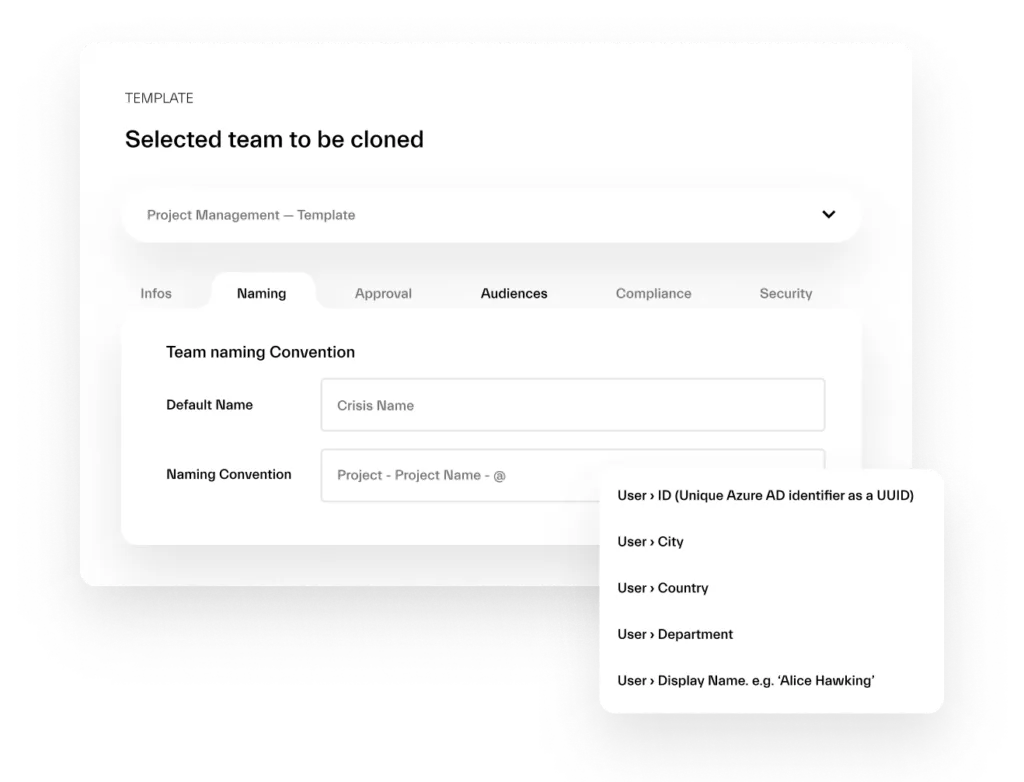
Give every team a consistent, structured name (for example PRJ-[Client]-[Year]) so teams are easy to find and duplicates are obvious. A naming standard is the single fastest way to make a workspace navigable again. See Microsoft Teams naming convention for patterns, and enforce it automatically with nBold’s governance policies.
2. Control who can create teams — with an approval workflow
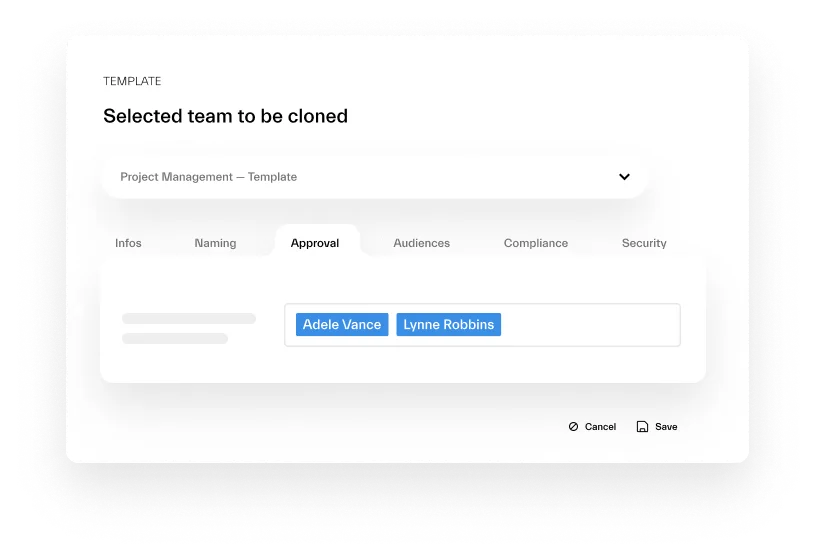
Uncontrolled self-service creates sprawl; a full lockdown creates shadow IT and IT ticket backlogs. The balance is an approval workflow: users can still request a team, but creation is delegated to a named approver or group. This keeps IT out of the critical path while ensuring every team has a reason to exist. nBold lets you route team-creation approvals to the right people. For the guardrails-not-gates philosophy, read how to enforce Teams governance without killing adoption.
3. Set membership and ownership rules
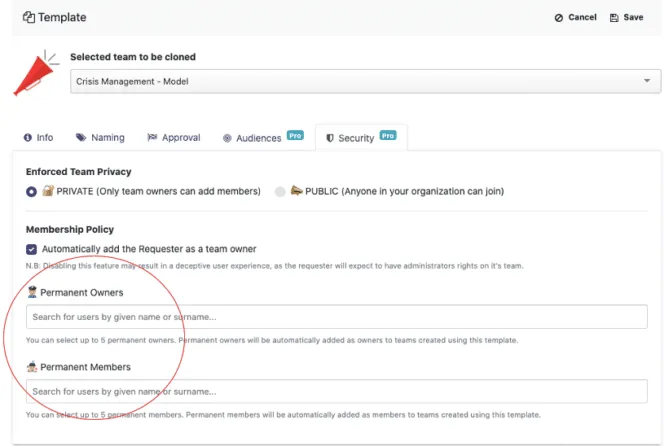
Orphaned teams — with no owner or a single member — are the core of sprawl. Enforce a minimum of two owners per team and add permanent owners/members automatically so no workspace is ever left ungoverned. nBold’s Permanent Ownership and Membership adds the right people to every team created from a template, so ownership and oversight are built in from day one.
4. Apply a lifecycle policy: inactivity → archive → delete
Sprawl is a time problem. Set a lifecycle policy that flags teams inactive for a defined period (e.g. 90 days), notifies the owner, then archives and eventually deletes them if still unused. This stops dead teams from accumulating. See nBold lifecycle management for automated inactivity-to-archive workflows across the whole estate.
5. Provision every team from a governed template
This is what ties the first four steps together. Instead of relying on people to remember the rules, bake them into pre-approved templates: a template carries its naming pattern, membership, ownership, approval requirement, and structure (channels, tabs, SharePoint, Planner) — so a compliant team is the default, created in a couple of clicks. Users get faster self-service; IT gets governance by design. Explore nBold collaboration templates and how to build a template catalog for each use case.

6. Run bulk remediation on the sprawl you already have
Prevention handles new teams; you still need to clean up the backlog. Use bulk operations to find teams with no owner, no activity, or non-compliant names, then rename, reassign ownership, archive, or delete them at scale — instead of one at a time. nBold bulk operations let you remediate an existing sprawl problem across hundreds of teams in one pass.
Why templates matter for adoption: limiting Office 365 group creation is a common first instinct, but it affects every service that relies on groups — Outlook, SharePoint, Planner, Viva Engage — and buries IT in creation requests. Governing through templates keeps self-service intact while enforcing the rules, which is why it protects adoption instead of fighting it. This is the business-led governance approach we recommend: governance should be led by business needs, not by lockdowns.
FAQs
How do you prevent Microsoft Teams sprawl?
Prevent Teams sprawl by governing teams at creation, not after. Set a naming convention, put team creation behind an approval workflow, enforce membership and ownership rules, apply a lifecycle policy (inactivity → archive → delete), and provision every team from a pre-approved template so the rules apply automatically. Then run bulk cleanup on the teams that already exist.
How do you prevent Teams sprawl without hurting adoption?
Don’t lock down creation — govern it. A blanket restriction on who can create teams pushes users to shadow IT and floods IT with requests. Instead, let users self-serve from governed templates with an approval step. They still get a team in a couple of clicks; the naming, membership, and lifecycle rules are simply built in. Governance becomes invisible guardrails rather than gates.
What causes Microsoft Teams sprawl?
The main causes are: no governance policies, rushed Teams deployment with no change management, lack of user training, and poor communication about when to create a team versus a channel or chat. In an AvePoint survey, 75% of organizations said they deployed Teams without proper governance or security (AvePoint, 2021) — the condition in which sprawl grows.
How do you clean up existing Microsoft Teams sprawl?
Use bulk operations to audit and remediate at scale: identify teams with no active owner, no activity in 90+ days, or non-compliant names, then rename them, reassign ownership, archive the inactive ones, and delete what’s genuinely dead. Doing this team-by-team doesn’t scale; nBold bulk operations remediate hundreds of teams in one pass.
Should you limit who can create teams in Microsoft Teams?
Limiting creation to admins reduces sprawl but creates two new problems: an IT bottleneck of creation requests, and shadow IT as users route around the restriction. It also affects every app that depends on Microsoft 365 Groups. A better model is delegated approval plus governed self-service templates — control without the bottleneck.
How do you handle inactive or orphaned teams?
Apply a lifecycle policy. Automatically detect teams that have been inactive for a set period, notify the owner to confirm whether the team is still needed, then archive it, and delete it after a further grace period if still unused. Enforcing a two-owner minimum prevents orphaned teams in the first place. See nBold lifecycle management.
What is a good Microsoft Teams naming convention?
A good naming convention is consistent, human-readable, and encodes purpose — for example a prefix for the team type, then the project or client, then the year (PRJ-Acme-2026). Prefixes and suffixes can be applied automatically so users don’t have to remember them. See Microsoft Teams naming convention for detailed patterns.