Find Any Team in Seconds: Smart Filters and Favorites in My Teams
Standardizing collaboration means every deal, client, or project workspace is born with the metadata that governs it — department, region, stage, client. But that structure only pays off if people can actually find the workspace it produced: once an organization has a few hundred teams, a flat list hides all of it, and people fall back to scrolling or guessing at a name. My Teams now puts that same metadata to work as clickable filter pills, combines it with free-text search, and lets you pin the teams you use most, so the right workspace is one click away instead of a search.
What’s new
- Clickable metadata pills: every team card shows its metadata (department, region, deal stage, client, or whatever your organization tracks) as colored pills. Click a pill to filter the whole grid down to teams that share it.
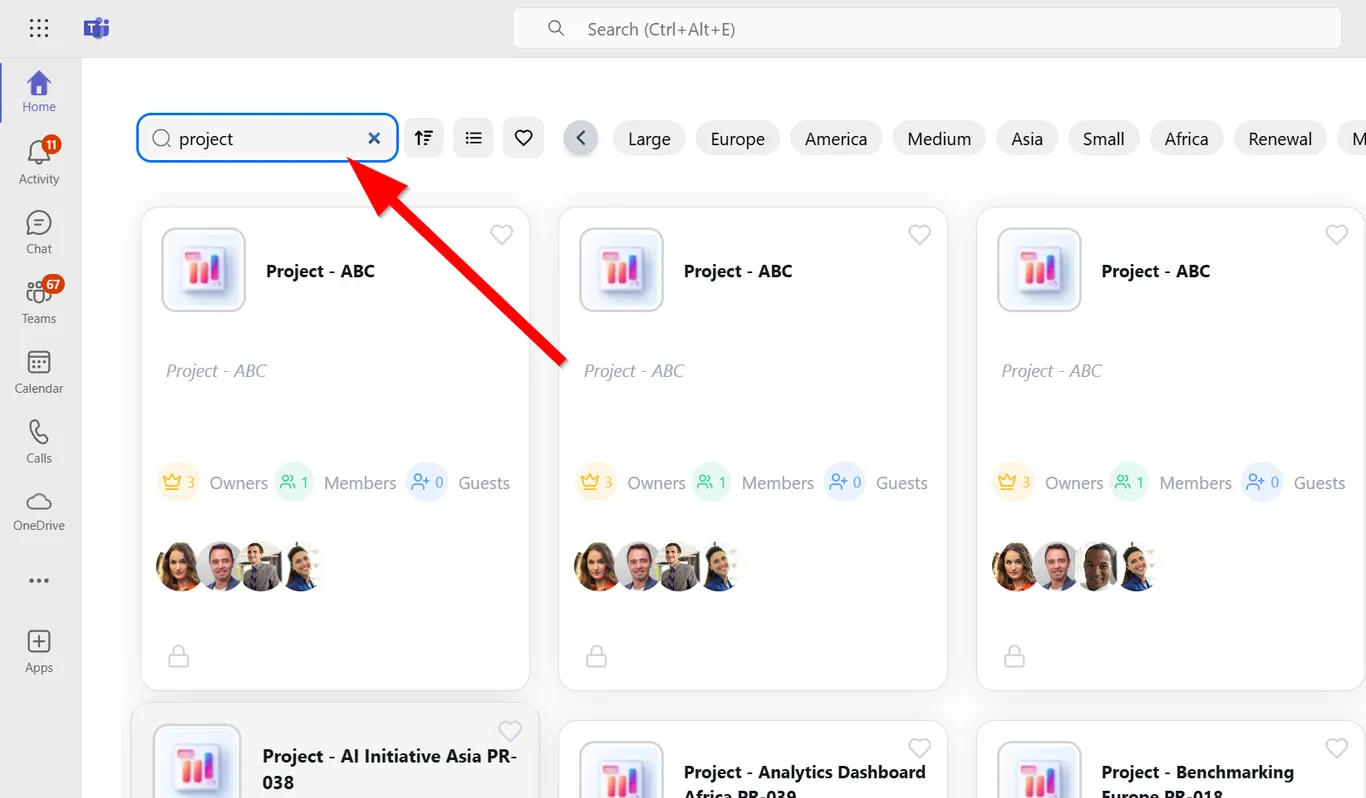
- Combined search: free-text search and metadata filters work together, not separately — narrow by pill first, then search by name within that filtered set (or the other way around).
- Favorites: mark any team with the heart icon to pin it. Favorites stay pinned across desktop, web, and mobile, so switching devices doesn’t mean re-finding your teams.
- Live grid refresh: the results update instantly as you add or remove filters — no page reload, no waiting.
How it works
Open My Teams and you’ll see your full team grid with metadata pills already visible on each card.
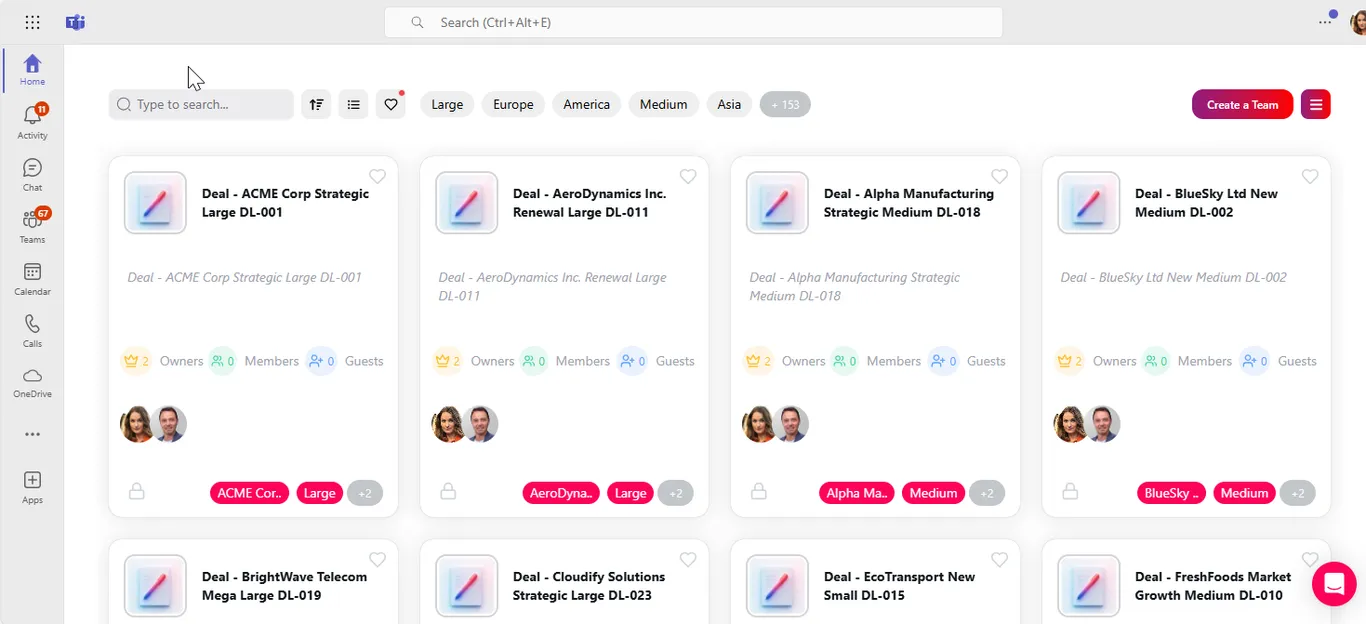
Click a pill to filter the grid to teams sharing that value. Add a second pill, or type into the search box, to narrow further — filters and search combine rather than reset each other.
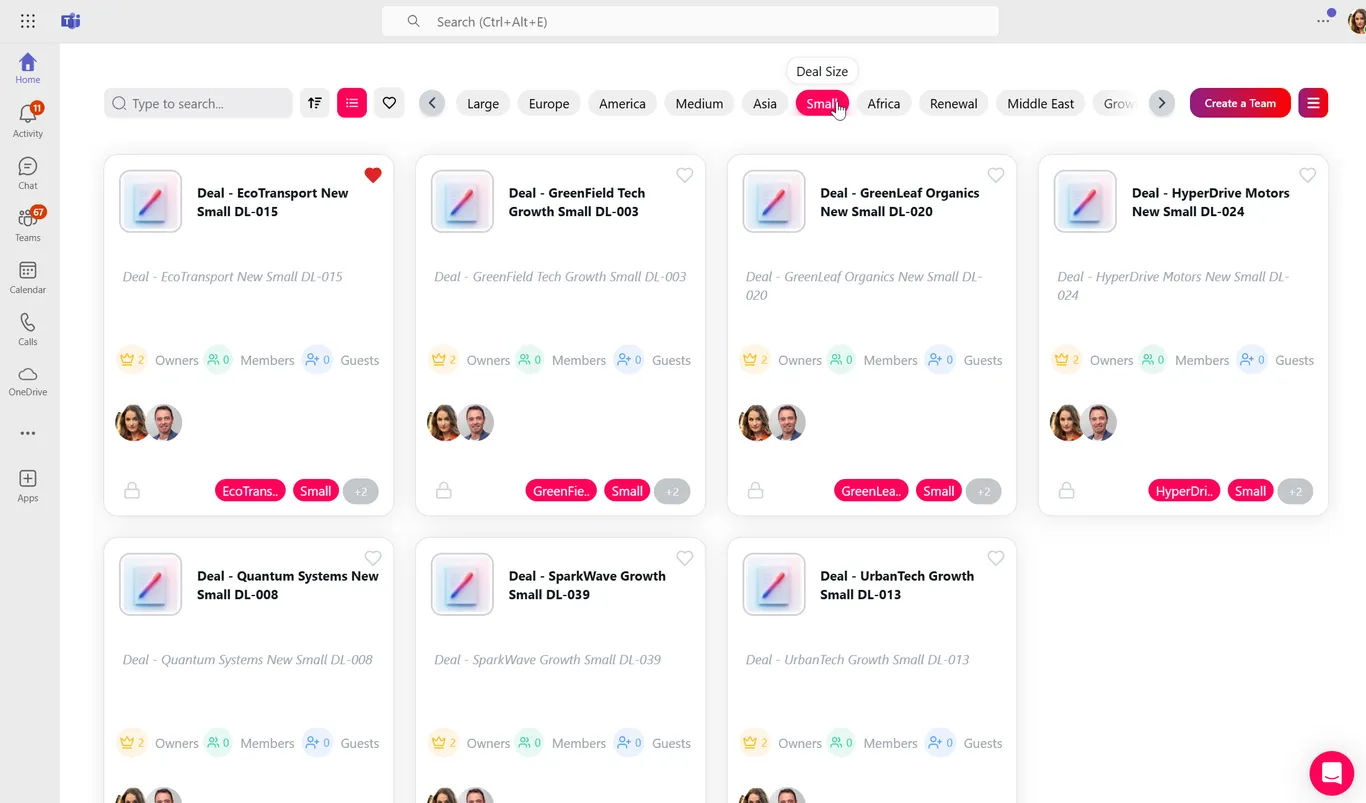
Click the heart icon on any team card to add it to Favorites. Favorited teams surface at the top of the view and sync across desktop, web, and mobile, so the teams you touch daily are always in reach.
Why it matters
As the number of teams in a tenant grows, the cost of “where is it” grows with it — every extra second spent hunting for a workspace is a second not spent on the actual work. Metadata-driven filtering turns the estate’s own governance data (the fields your templates already capture) into a navigation tool, and favorites make repeat access instant. The result: people spend less time orienting and more time working, without IT having to build a separate directory to make teams findable.
Related
My Teams filtering and favorites build on the metadata and governance framework configured across your workspace estate. See how templates, metadata, and lifecycle policy fit together on the nBold platform page, or book a demo to see My Teams in your own tenant.