Cap SharePoint Storage per Template — Automatically
Part of nBold’s job is making sure IT stays in control even as teams spin up workspaces on their own. That’s easy to say and hard to keep true for storage: nothing about creating a team from a template caps how big its SharePoint site can grow, so hundreds of workspaces can quietly balloon until someone in IT is chasing individual sites after a Microsoft warning. nBold now lets you set a maximum SharePoint storage quota on the template itself, so every team created from it inherits the ceiling automatically — set once, capped forever, with no per-site admin work.
What’s new
You can now:
- Set a maximum SharePoint site storage limit, in GB, on any Microsoft Teams template.
- Apply that limit automatically to every team created from the template going forward.
- Vary the ceiling by business process — a lightweight HR team doesn’t need the same allowance as a file-heavy construction project or legal deal room.
- Keep storage governance consistent without chasing individual sites after the fact.
Once the one-time setup below is complete, the quota slider lives directly in the template’s Compliance tab.
How it works
Storage quota management requires a one-time admin setup per tenant, then a per-template quota after that.
One-time setup:
- In nBold, open any template and go to its Compliance tab.
- Click Grant Permissions and approve the consent dialog on behalf of your organization. This lets nBold check whether SharePoint storage is set to manual.
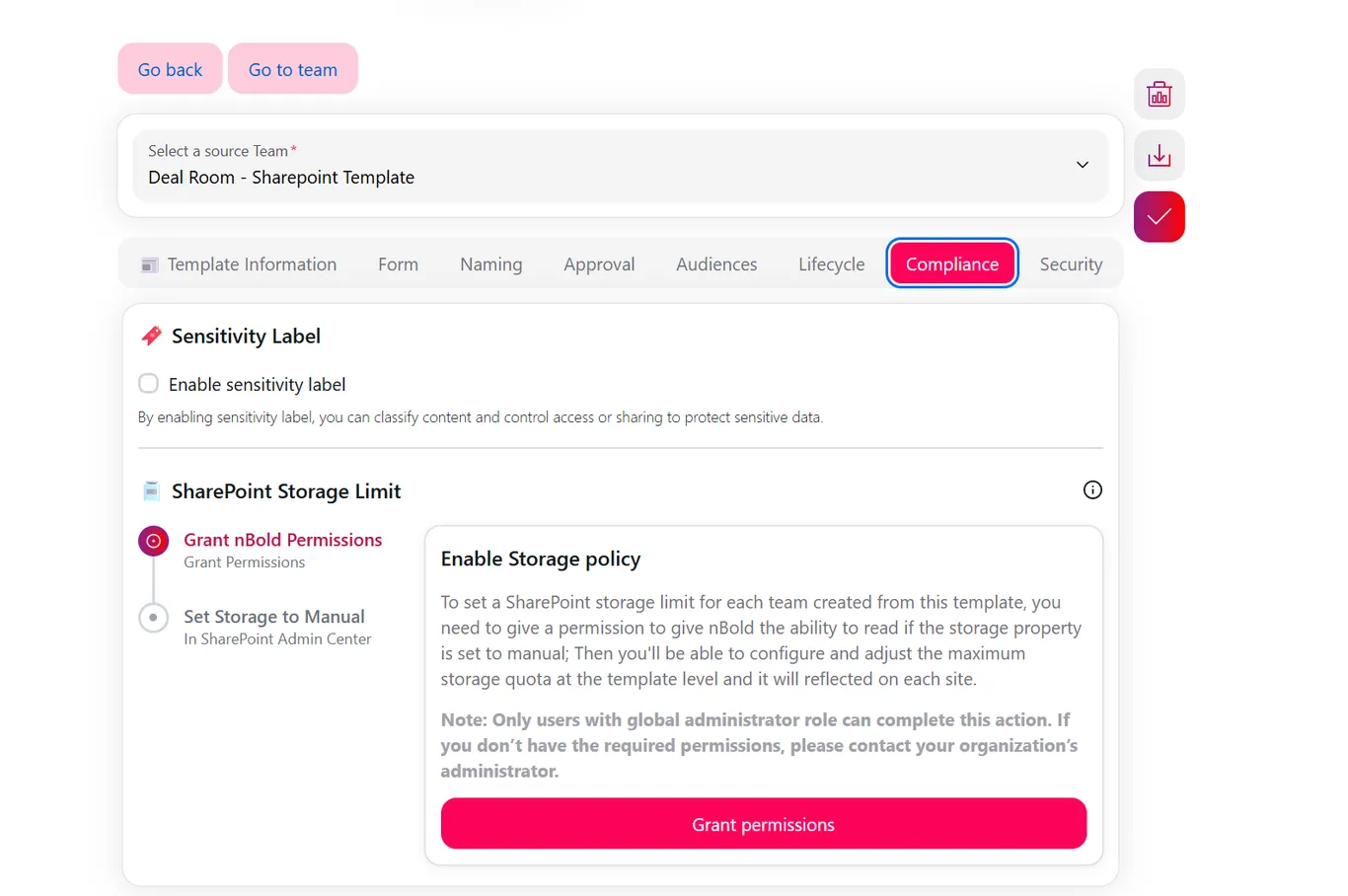
- In the SharePoint Admin Center, go to Settings → Storage Limit and switch it from Automatic to Manual, then save.
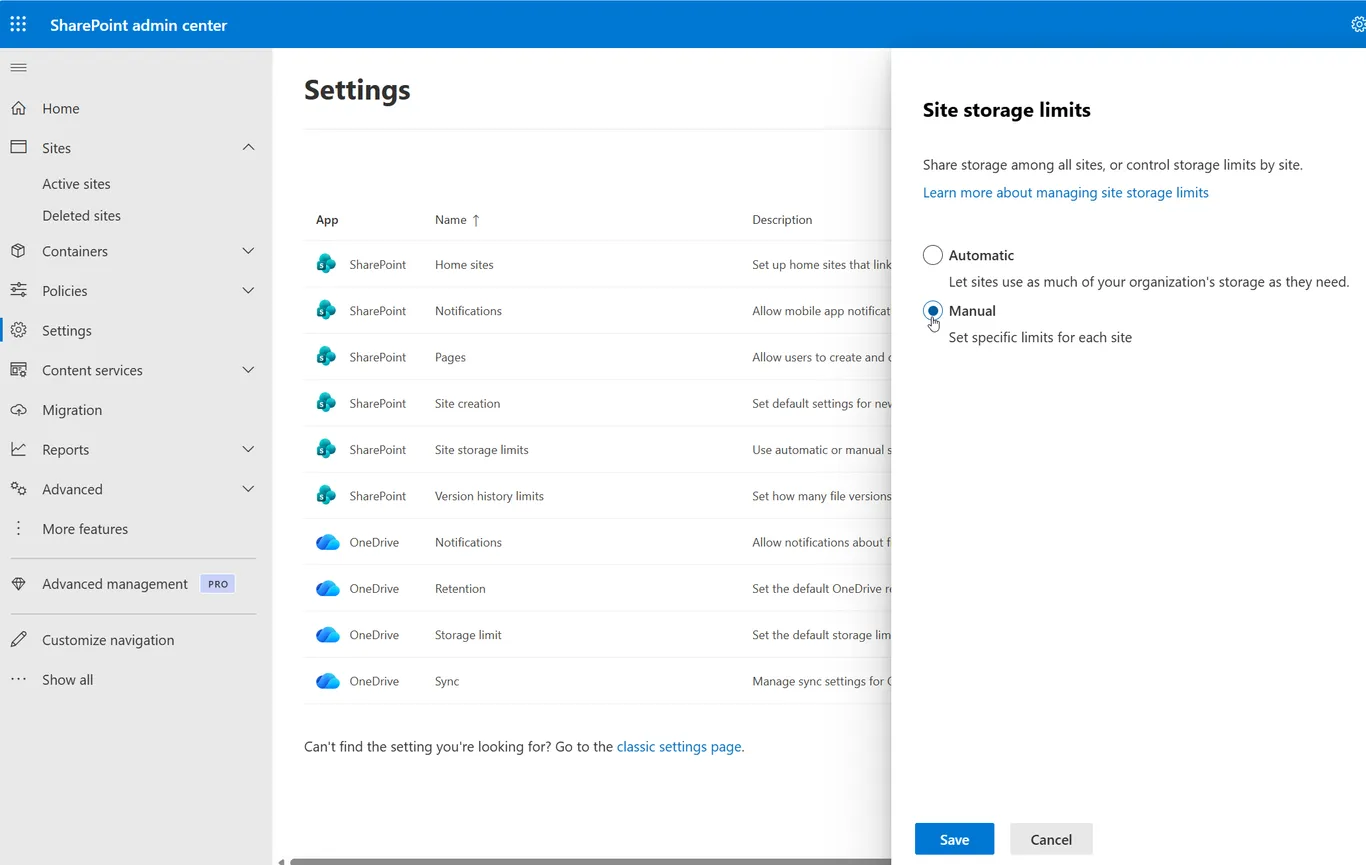
- Back in nBold’s Compliance tab, confirm both checks are green (permissions granted, storage set to manual), then click Confirm policy enabled.
Per template, from then on:
- Open the template’s Compliance tab.
- Under SharePoint Storage Limit, move the slider or type the quota in GB.
- Save the template.
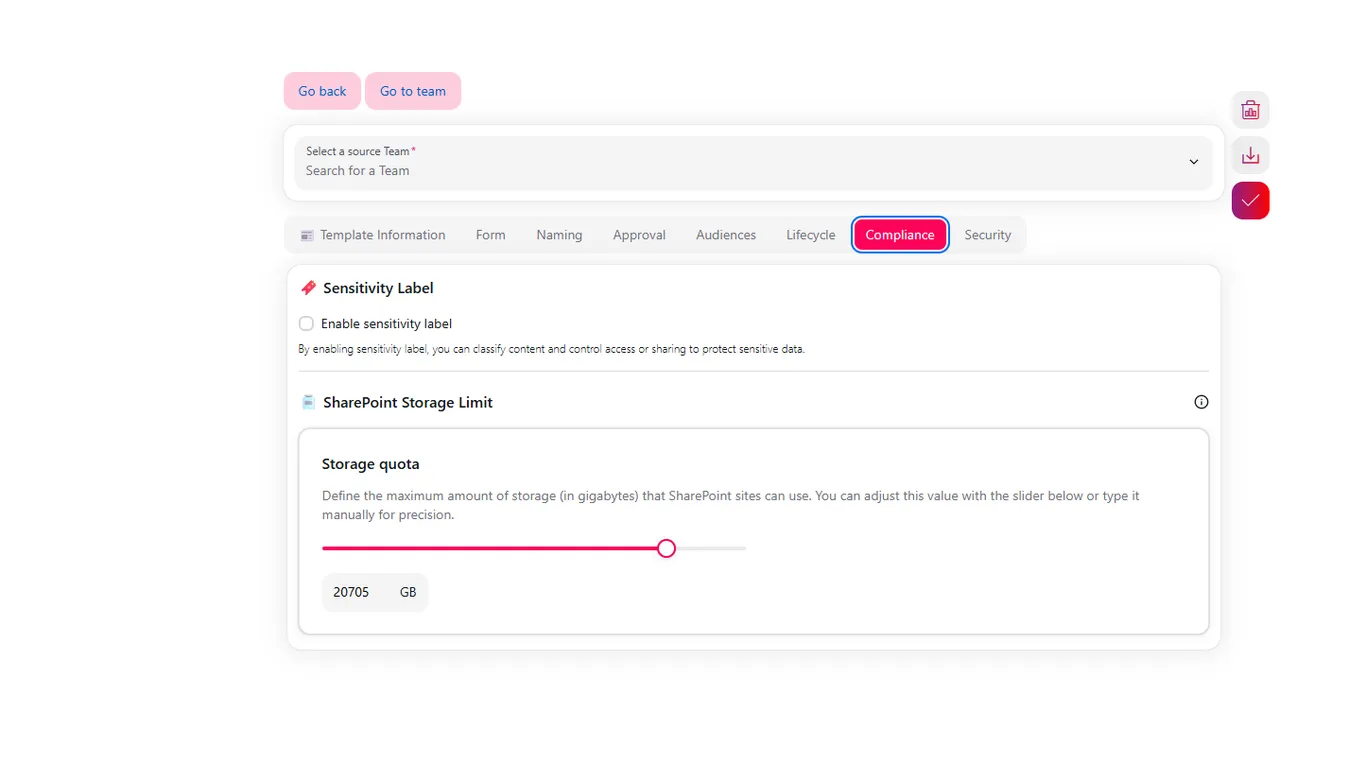
Quota changes apply only to teams created after the change — like other template governance settings, they don’t retroactively resize existing sites. You can track actual usage per team in Bulk and in the SharePoint Admin Center.
Why it matters
Storage sprawl is one of the few governance problems that shows up on an invoice. Setting the ceiling once, at the template level, means you don’t have to police hundreds of individual sites or wait for a Microsoft 365 storage alert to find out a workspace ballooned. It puts the decision where it belongs — with whoever owns the business process — and it applies without anyone remembering to do it by hand.
Related
Storage quotas are one piece of the governance framework attached to every template — alongside naming, approval, audience, lifecycle, and sensitivity labels. See how it all fits together on Governed Microsoft 365, or book a demo to see quota management on your own templates.