Describe a Workspace, Get a Template: Meet the nBold Template Agent (Beta)
nBold turns the way your business runs into workspaces that arrive ready to work — every deal, onboarding, project, or escalation starting from the same structured, governed foundation instead of a blank canvas. That foundation is a template, and building one properly means capturing all of it by hand: naming conventions, channel structure, a Planner board, the right Lists, sensible governance — painstaking work that can eat hours per scenario. The Template Agent collapses that into a single sentence: describe the workspace you need, something like “project kickoff for consulting deals,” and in minutes it drafts the whole template, ready for a Catalog Manager or Global Admin to review. The Template Agent is in beta, available for early access while nBold collects feedback. It is also the first step toward a more agentic nBold, with further agent capabilities to follow.
A short presentation of the Template Agent, from brief to a template created in Microsoft Teams (1 min 15).
What’s new
The Template Agent generates a full starter template from a plain-language description, including:
- Channels matched to the described workflow
- A starting Planner board and task structure
- Files, folders, and relevant Lists
- Suggested governance: naming convention, audience, lifecycle, and sensitivity labels
- Optional source material: attach a file or point the Agent at a web page, and it ingests that content alongside your plain-language brief
- A history of your drafts: browse your earlier templates, reopen one to keep refining it, or start a new one while the previous stays saved
It also supports editing an existing template with a natural-language instruction — describe the change you want and the Agent proposes a diff instead of a blank-page rebuild.
How it works
- Open the Template Agent and describe the workspace you need, in plain language.
- Watch a live “current thinking” panel as the Agent reasons through the structure it’s proposing.
- Review the generated template: channels, Planner setup, files and Lists, and the suggested governance settings.
- To adjust an existing template instead of starting fresh, describe the change and let the Agent propose an edit.
- Come back any time: open History to browse your earlier templates, reopen a draft to continue where you left off, start a new template without losing the previous one, or delete a draft you no longer need.
- Nothing goes live automatically — the output is always a draft. A Catalog Manager or Global Admin has to review and publish it before anyone can provision from it.
Every generation and every edit is logged, so there’s a full audit trail of what the Agent proposed and who approved it.
A walkthrough: a construction project workspace from one brief
Here’s the process end to end, for a workspace that will live in Microsoft Teams. Meridian Build, a general contractor, needs a workspace it can open the moment it wins a contract — one that matches how it actually runs a job from preconstruction through closeout.
- On the prompt screen, Meridian Build’s team describes the brief: “We’re a general contractor and every construction project gets its own workspace at contract award. Attached is our project delivery framework. Build the template from it — I want a task board for the construction phase and a tracker for RFIs.” They attach their project delivery framework as a PowerPoint and select Build my template.
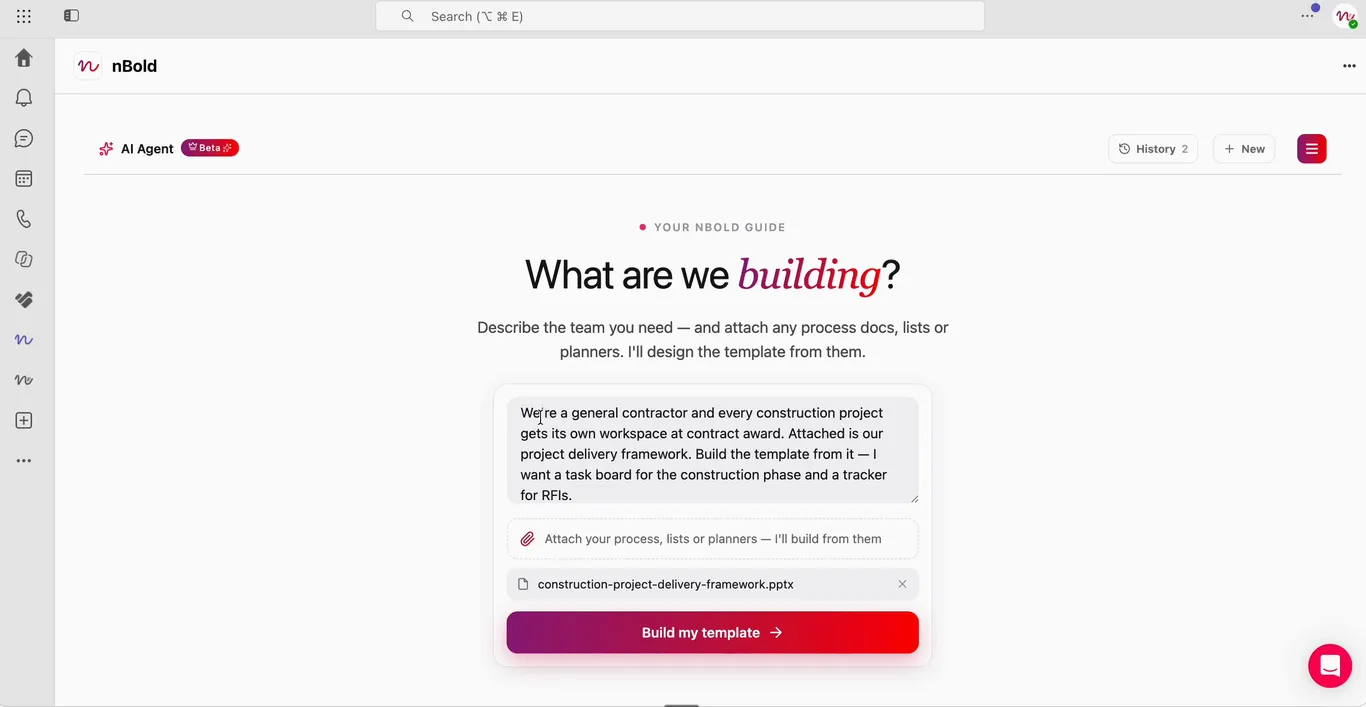
The Agent starts from a brief and a real document, not a blank form.
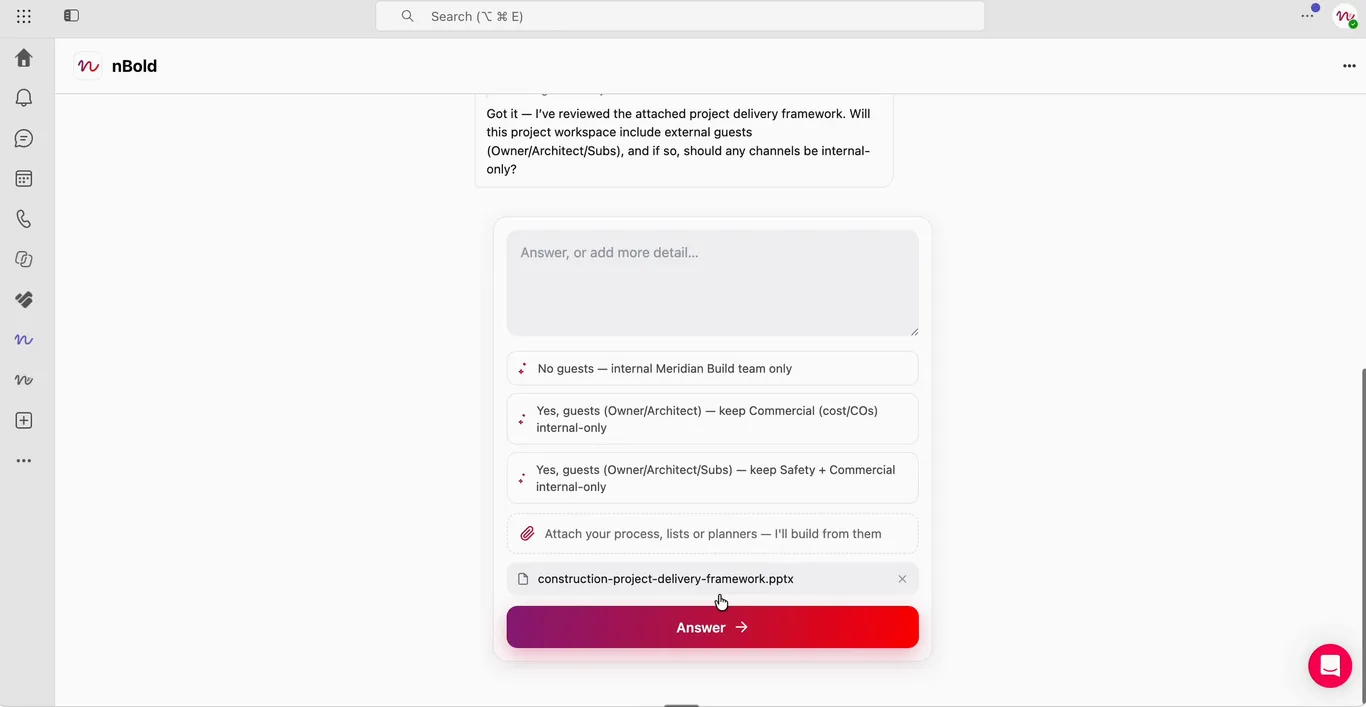
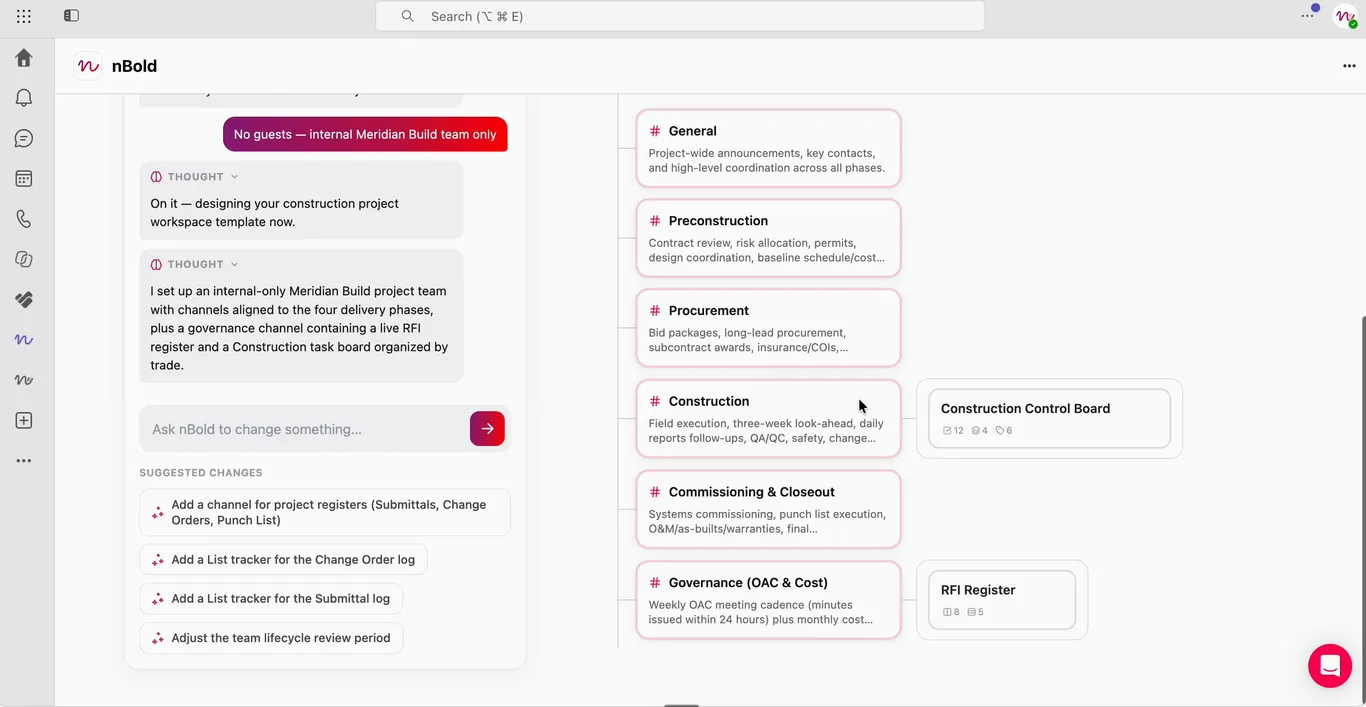
- Before drafting anything, the Agent asks one scoping question: will the workspace include external guests such as the Owner or Architect, and if so, which channels should stay internal-only. Meridian Build picks “No guests — internal Meridian Build team only.”
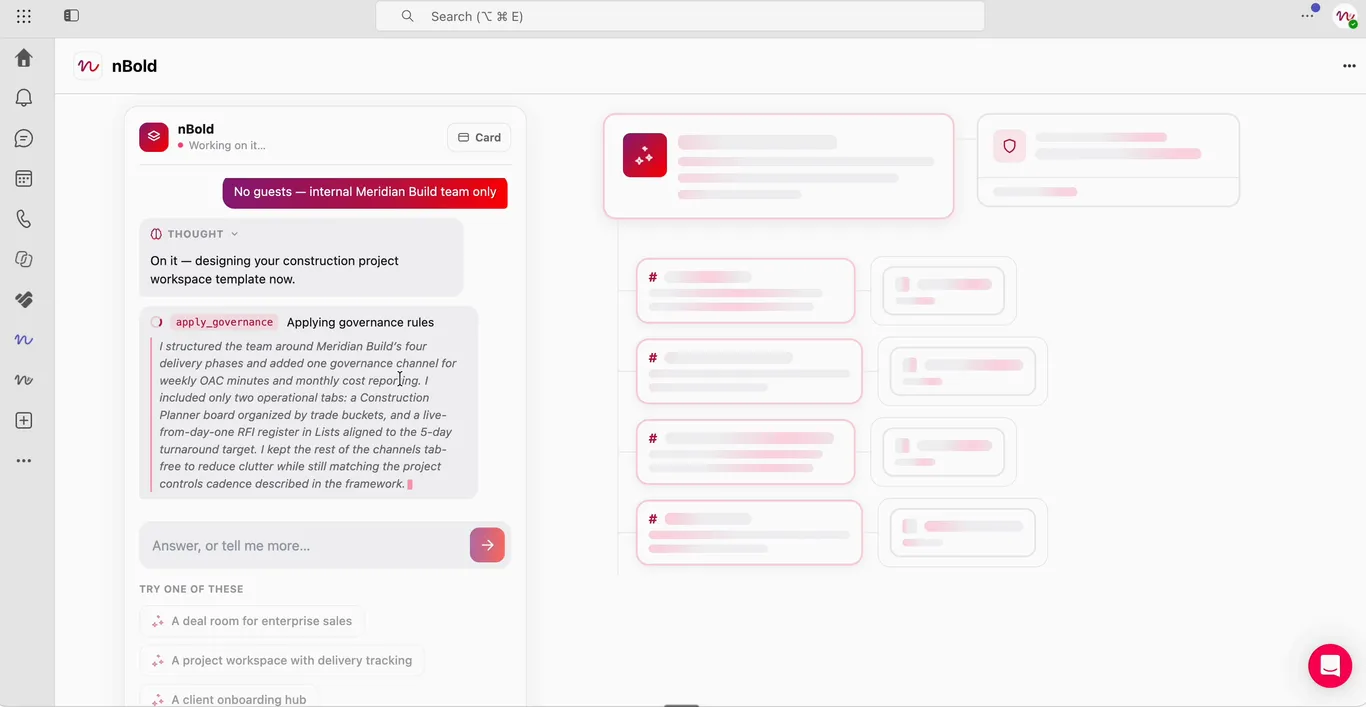
- With its reasoning visible step by step, the Agent structures the team around the four delivery phases in the framework, adds a single governance channel for weekly OAC minutes and monthly cost reporting, and keeps the operational surface to two tabs: a Construction Planner board organized by trade, and a live RFI register in Lists aligned to the framework’s five-day turnaround target.
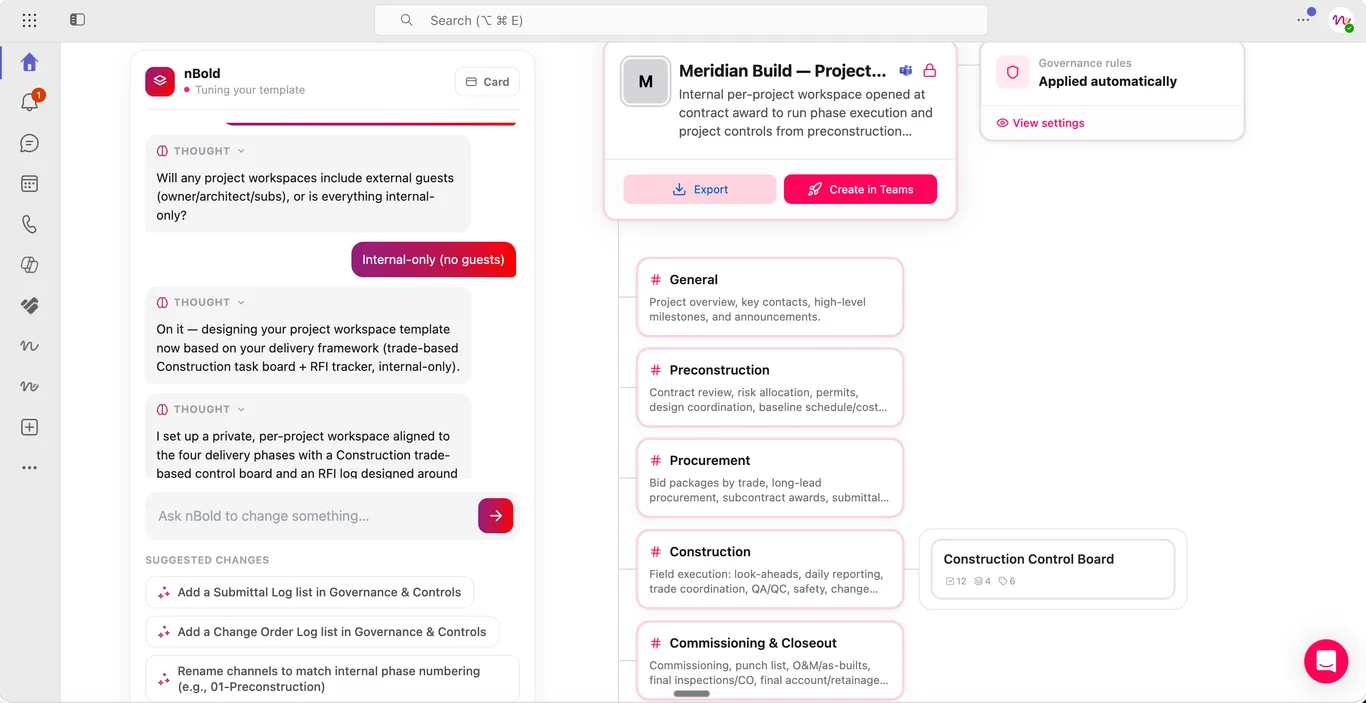
- The draft lands with six channels — General, Preconstruction, Procurement, Construction (holding a Construction Control Board in Planner), Commissioning & Closeout, and Governance (OAC & Cost) (holding an RFI Register list) — plus four suggested changes below the chat: a channel for project registers, List trackers for the change order and submittal logs, and an adjusted team lifecycle review period.
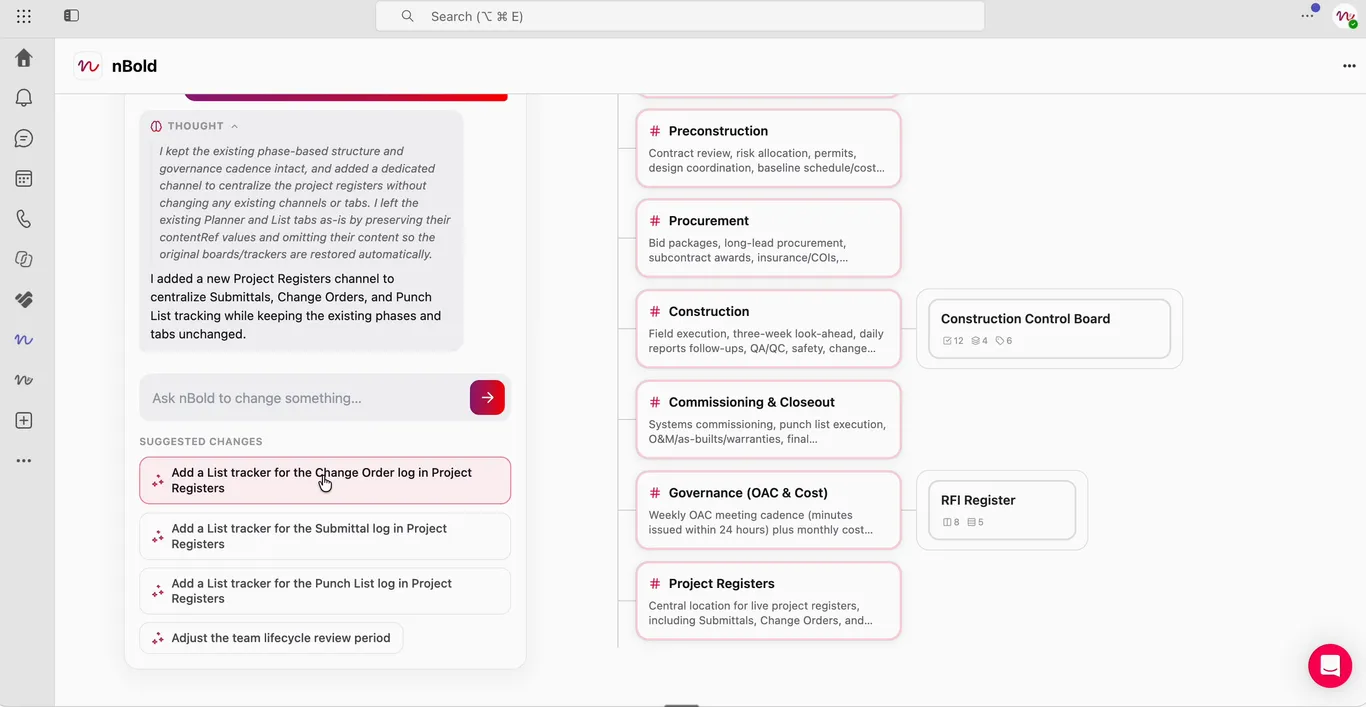
- Meridian Build accepts the first suggestion. A new Project Registers channel appears in the structure, and the Agent confirms it left the existing phases and governance cadence untouched — nothing else moved. Next up: adding a List tracker for the change order log inside that same channel.
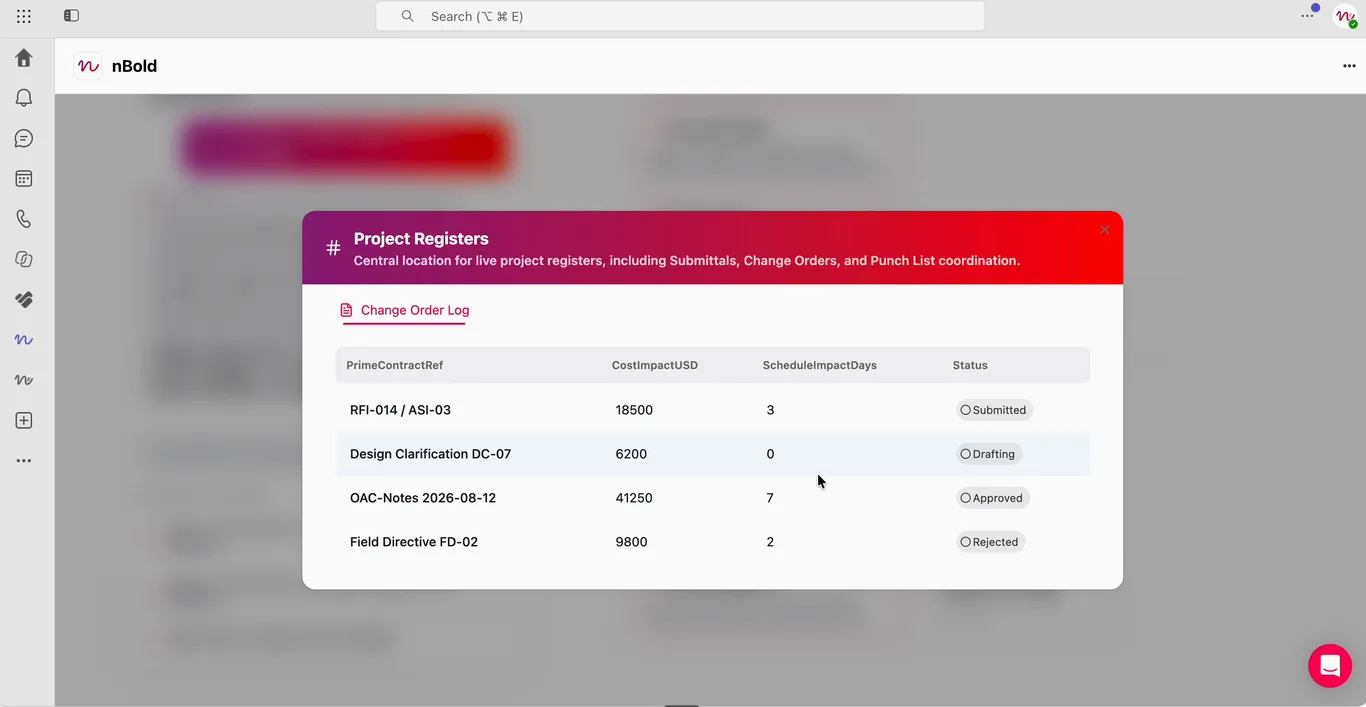
- That list opens as the Change Order Log, with columns for the prime contract reference, cost impact, schedule impact, and status — pre-seeded with example rows so the structure is legible before real data lands.
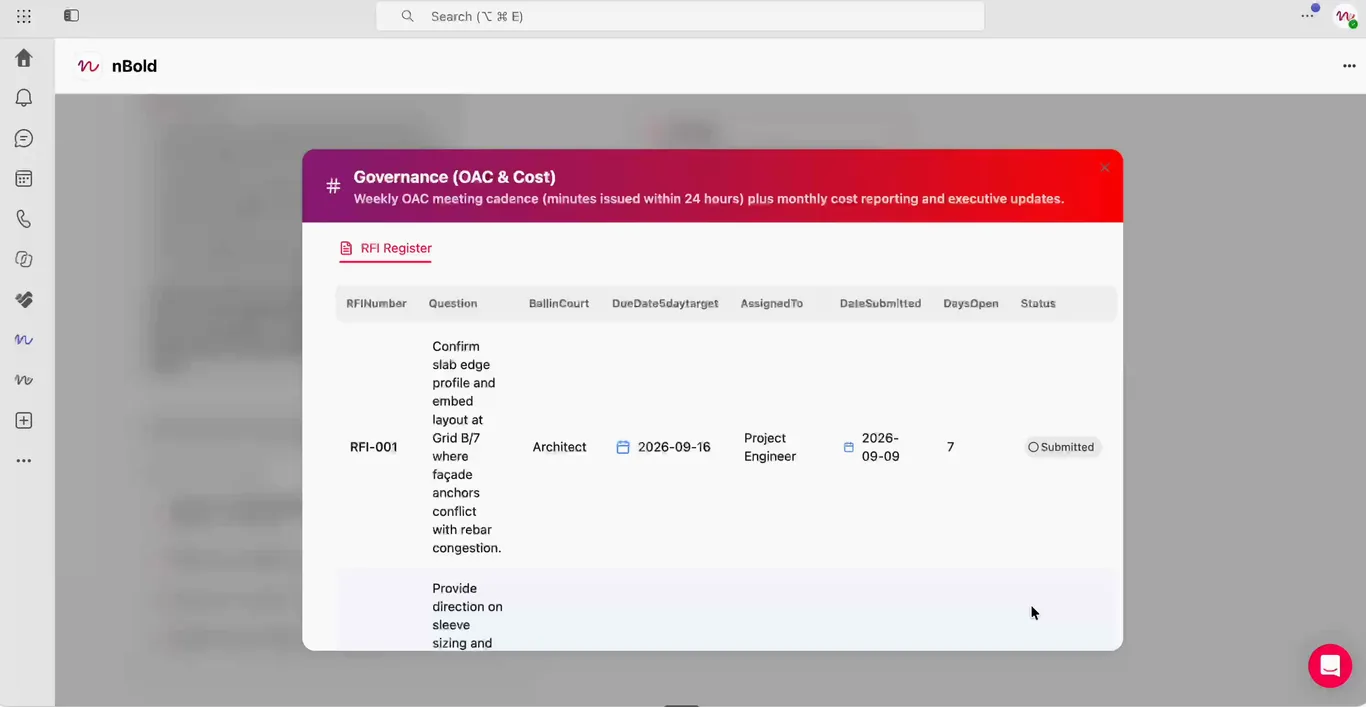
- Over in Governance (OAC & Cost), the RFI Register carries the fields a construction team actually tracks: RFI number, question, who has the ball, due date against the five-day target, assignee, submission date, days open, and status.
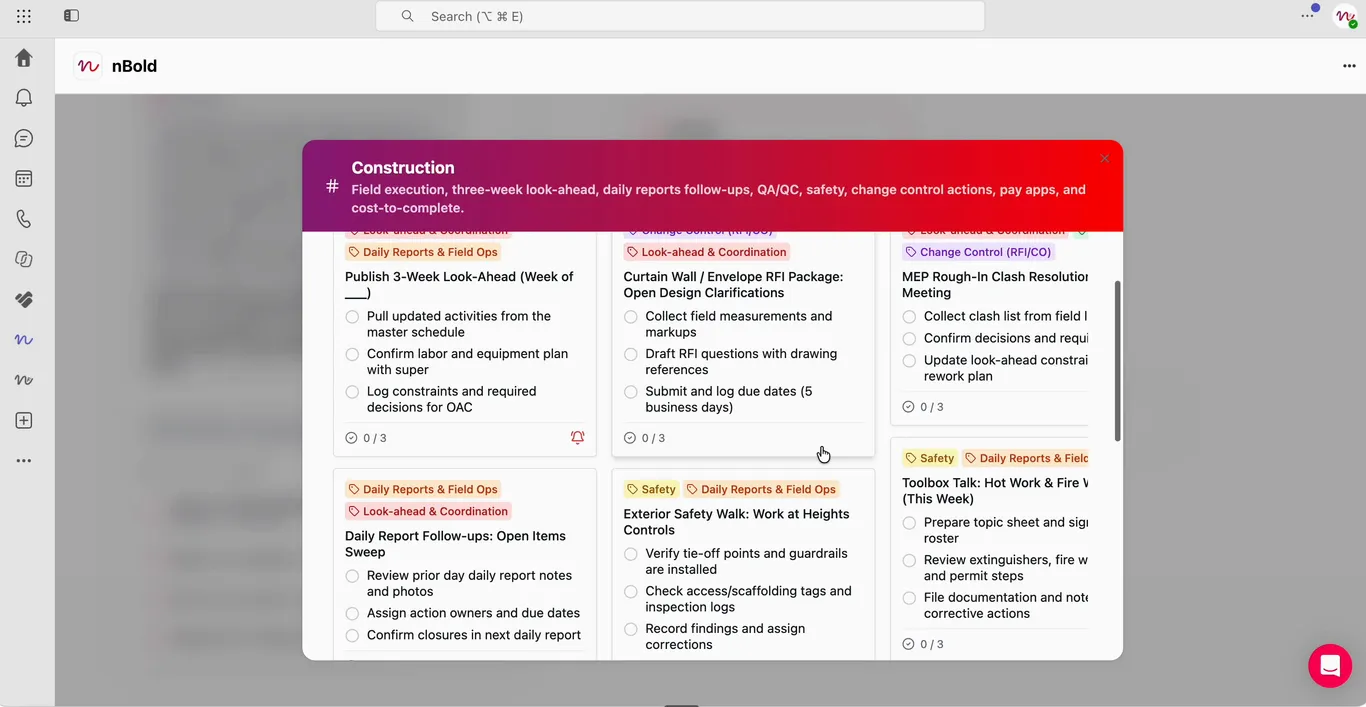
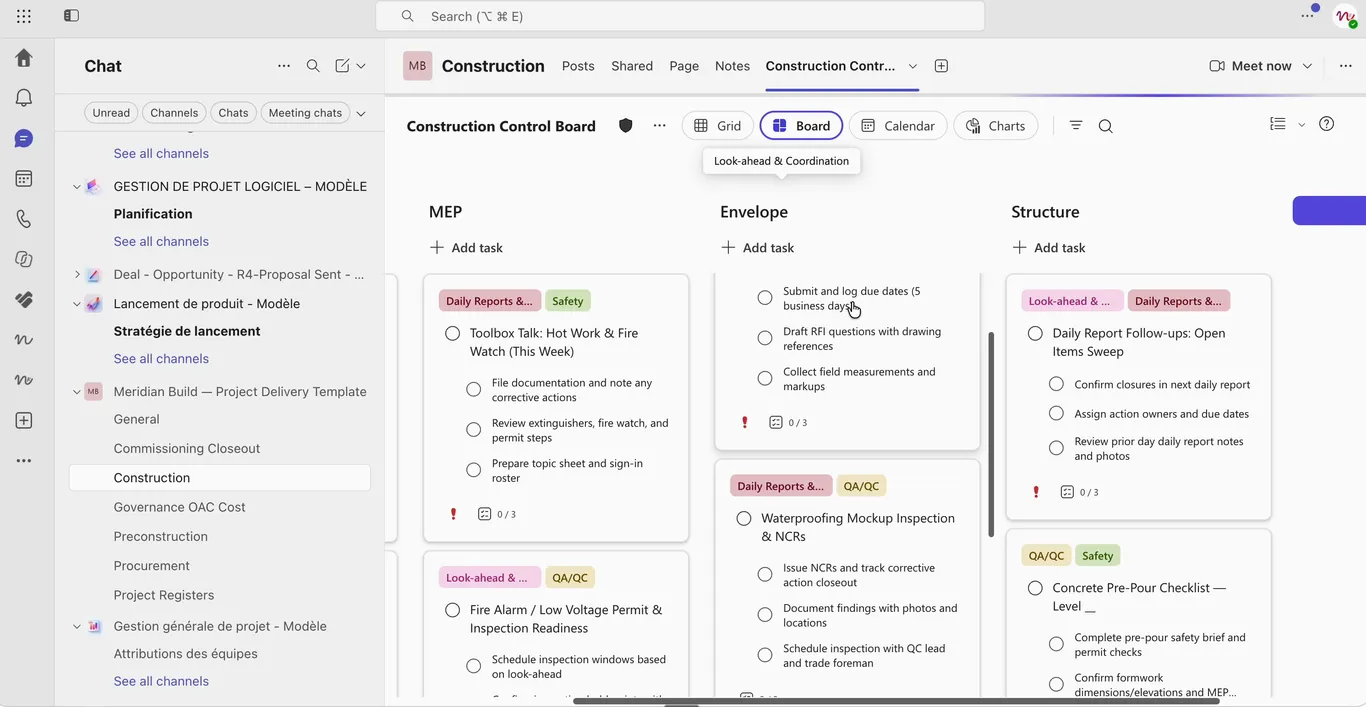
- The Construction Control Board itself is organized by trade — Structure, Envelope, MEP, Finishes — with tasks labeled by discipline (daily reports and field ops, look-ahead and coordination, safety, change control, cost and pay apps, QA/QC) and checklists like publishing the three-week look-ahead or resolving an MEP rough-in clash.
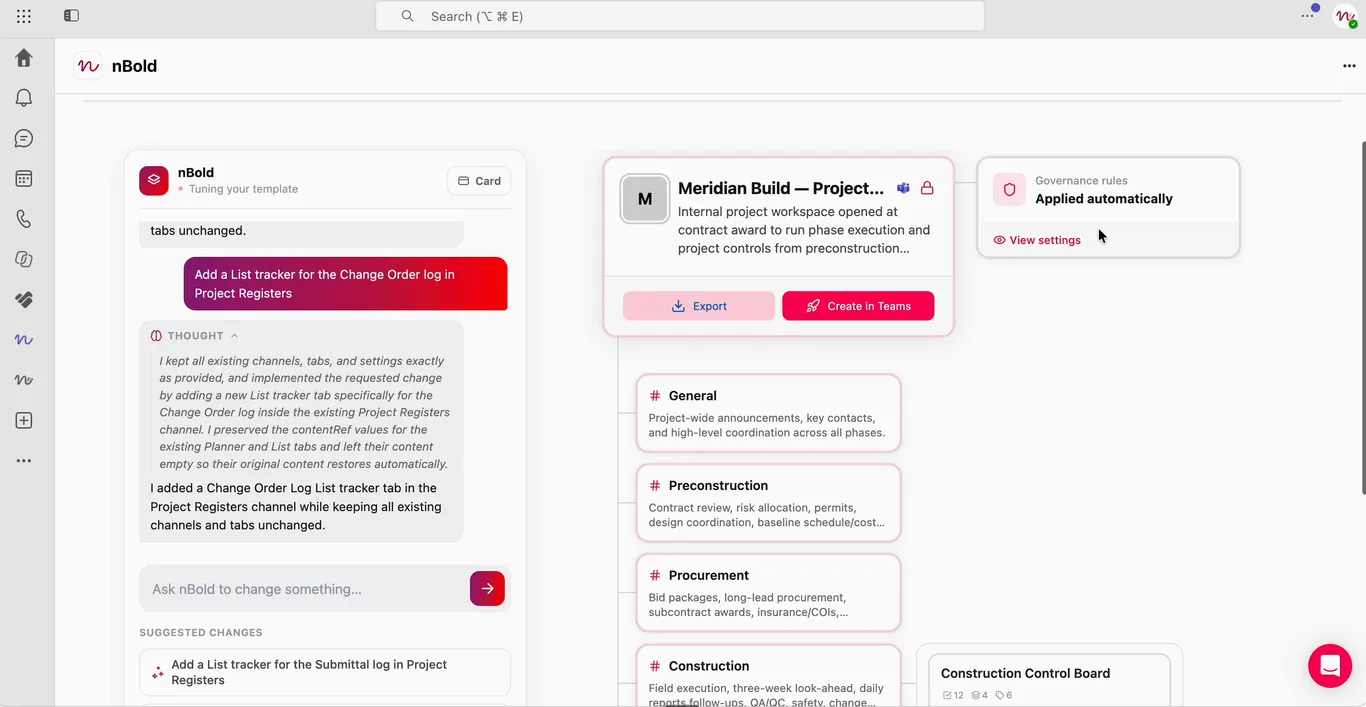
- Back on the template card — “Meridian Build — Project Delivery Template,” a private team — the description and a “Governance rules: Applied automatically” panel confirm what will apply once it’s created. Two options sit at the bottom: Export, or Create in Teams.
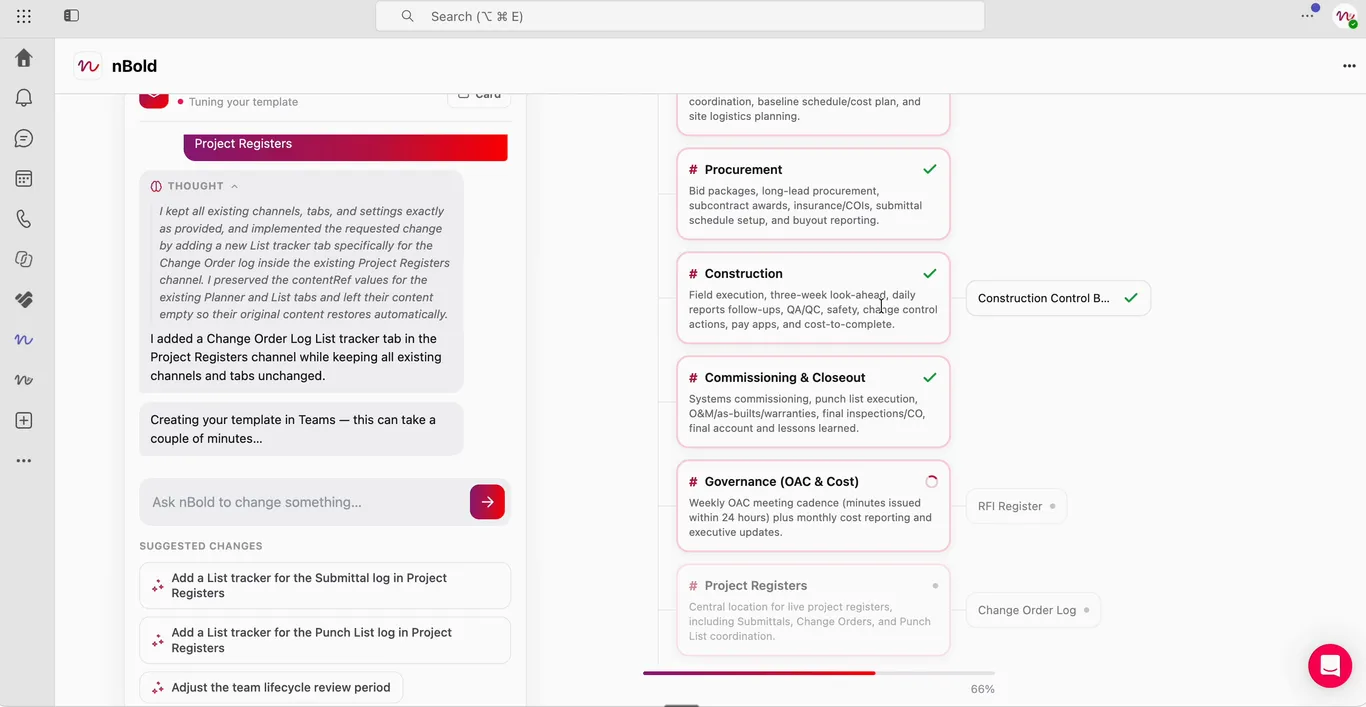
- Creating the source team takes a couple of minutes: a progress bar works through the channels, boards, and lists one at a time, checking each off as it lands.
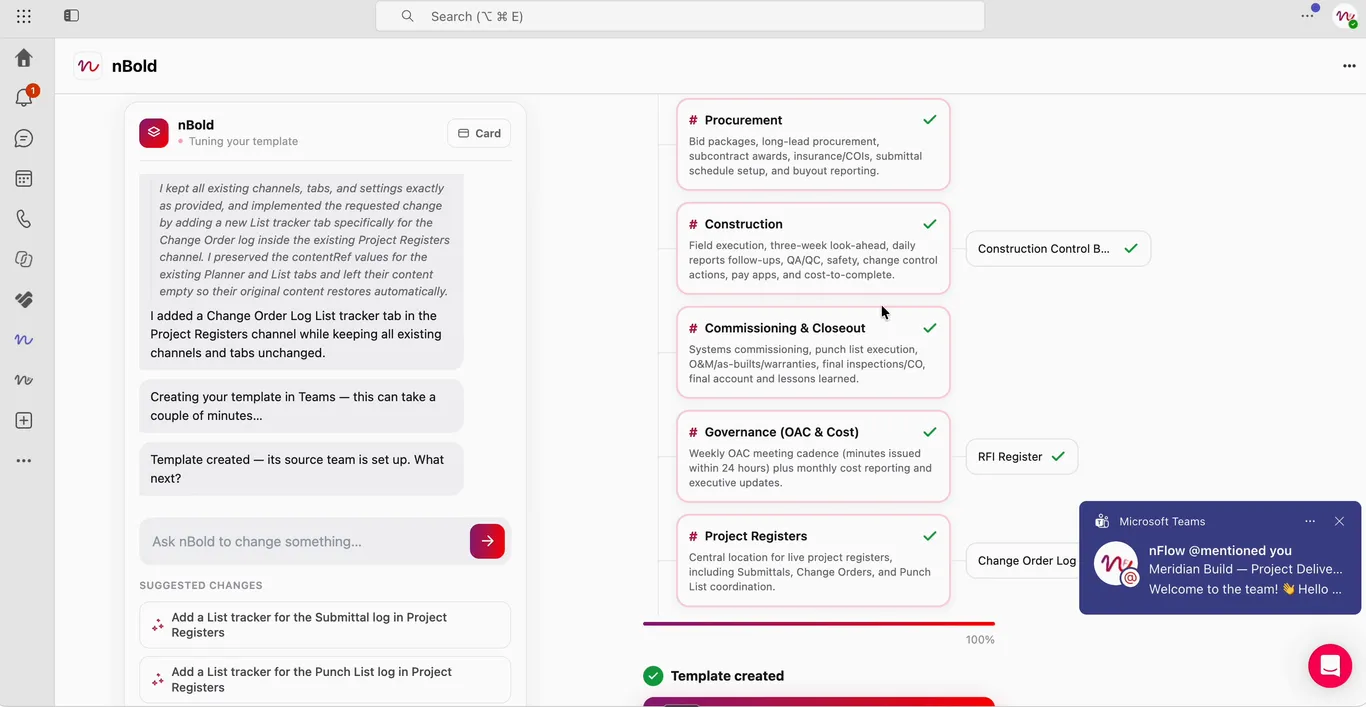
- When every element is checked, the template is created — and its source team is set up. In Microsoft Teams, nBold’s bot posts a “Welcome to the team!” message the moment it’s ready.
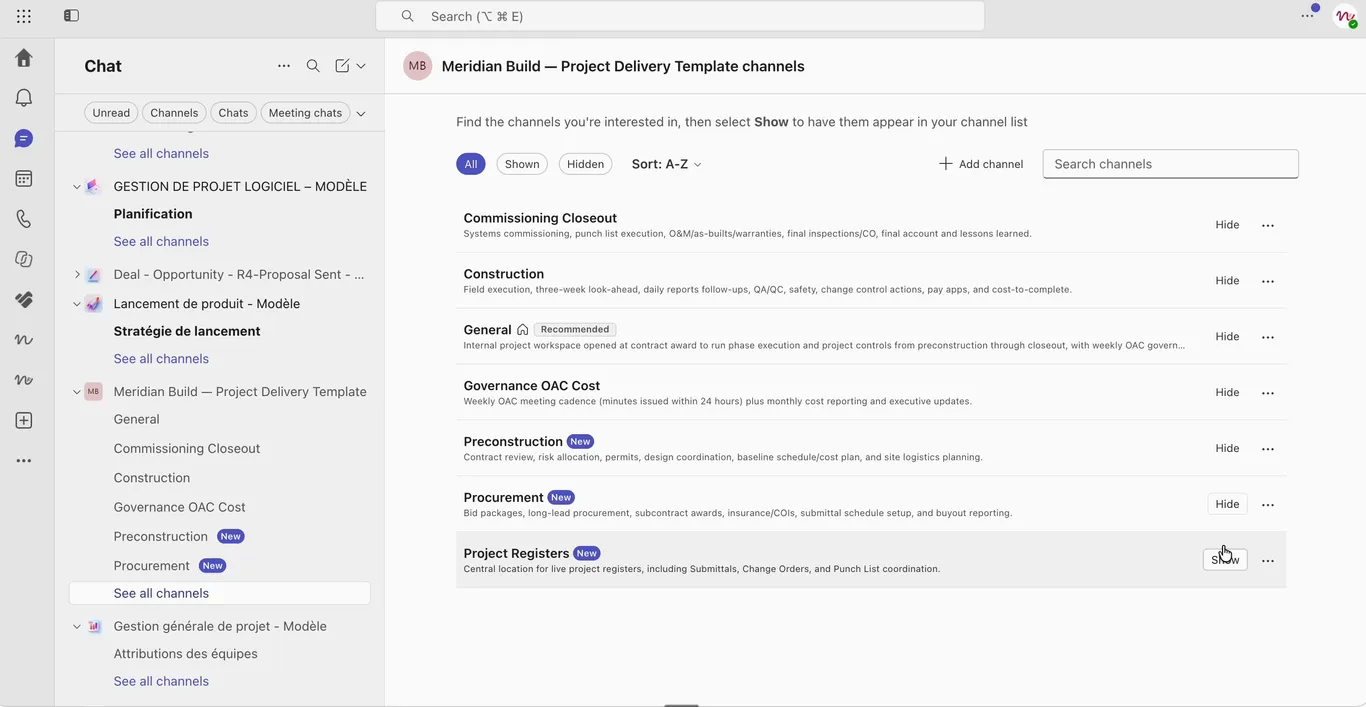
- In Teams, the new “Meridian Build — Project Delivery Template” team is live, its channels — Commissioning Closeout, Construction, General, Governance OAC Cost, Preconstruction, Procurement, Project Registers — each flagged New.
- And inside Construction, the Construction Control Board is exactly the Planner tab the Agent designed: same trade buckets, same tasks, ready to run.
At this point, the source team exists in Microsoft Teams, and the template itself is registered in nBold — ready for a Catalog Manager or Global Admin to review, publish, and provision from. Every generation and every edit along the way was logged, from the first brief to the last accepted suggestion.
Why it matters
The bottleneck in template creation has never been ideas — it’s the manual setup work standing between “we need a template for this” and a template someone can actually provision from. The Template Agent collapses that gap without collapsing governance: it drafts fast, but nothing reaches the catalog without an admin’s review and publish step. You get the speed of AI-assisted setup and the same approval discipline you’d apply to a template built by hand — every generation logged, nothing skipping the gate.
The Template Agent is in beta — available for early access while nBold collects feedback.
Related
See how templates fit into nBold’s broader governance model — naming, audience targeting, lifecycle, and sensitivity — on the platform overview. Want to try the Template Agent in your own tenant? Book a demo.