Microsoft Teams Template for Construction Projects
Microsoft Teams has no construction template in the admin center. The closest prebuilt ones are Manage a Project, Quality and Safety, Incident Response and Frontline Collaboration, so the practical answer is a custom template with a site-project structure, plus a governance layer for everything native templates don’t carry. That means members, files, private channels, naming and what happens when the project ends.
Construction crews are frontline workers, and Microsoft’s own research shows how unevenly they are equipped. In its Work Trend Index report on frontline workers (January 2022), Microsoft reported that monthly Teams use among frontline workers grew by 400 percent between March 2020 and November 2021, while one-third of frontline workers said they did not have the right technological tools to do their job effectively. In the same report, Kristina Behr, Microsoft’s vice president of product management for frontline workers and industry, said, “Frontline workers are the face of your business.” For an IT admin, that translates into a simple job: every project needs a workspace that is ready, consistent and governed before the first crew arrives.
Quick fix: In the Teams admin center, go to Teams > Team templates, duplicate a prebuilt template (or create one from an existing team), and add your site channels. Then handle members, files, private channels and naming separately, because native templates don’t copy them.
This guide is for M365 and Teams admins and governance owners at construction and engineering firms. For the day-to-day collaboration side, see how to use Microsoft Teams in construction.
Does Microsoft Teams have a construction template?
No. None of the prebuilt templates is aimed at construction. Two are close enough to be useful starting points, as described in Microsoft’s Teams templates documentation:
- Manage a Project has General, Announcements, Resources and Planning channels, with apps that include Approvals, the Lists Project tracker and Issue tracker, and Planner.
- Quality and Safety has channels that include Health and Safety, Maintenance and Training, with apps that include Inspection, Issue reporting and Shifts.
Incident Response and Frontline Collaboration are also in the list, and they fit specific needs rather than a whole project. Prebuilt templates can be duplicated but not edited.
To build a custom one, open the Teams admin center and go to Teams > Team templates > Add. You can start from scratch or base it on an existing team, which is usually faster: build a “Construction Site - Template” team, then create the template from it. Microsoft documents the steps to create a team template. A new template can take up to 24 hours to appear for users.
What native Teams templates don’t carry
Microsoft documents what a native template can and can’t include:
| Included in a native template | Not included |
|---|---|
| Name, description, visibility | Team membership |
| Team settings | Team picture |
| Channels | Channel settings |
| Installed apps | Connectors |
| Pinned tabs | Files and content |
| Private and shared channels |
The limits are 15 channels per template, 20 tabs per channel and 50 apps per template. For a construction project the gaps matter. The inspection procedures, safety regulations and drawing register are files. The project manager and quality manager are members. The budget and legal discussion belongs in a private channel. None of those travel with a native template.

You also control who sees which template. Under Teams > Templates policies you can hide templates from users, but Microsoft notes that templates policies can’t be assigned by group and that changes can take up to 24 hours. If you need files in the template, see our guide on Teams templates with files and folders.
How to structure a construction project team
Keep the channel set small and named by purpose. One example layout for a site project, adapted from the topics construction teams usually track (legal, energy, quality, sustainability, construction, budget, planning, security):
| Channel | Type | What lives there |
|---|---|---|
| General | Standard | Announcements and quick coordination |
| Site Updates | Standard | Daily progress, photos, access and logistics |
| Health and Safety | Standard | Safety regulations, inspections, incident follow-up |
| Quality | Standard | Inspection checklists, non-conformance issues |
| Planning | Standard | Project schedule and the Planner board |
| Document Control | Standard | Drawings, submittals, RFIs, meeting minutes |
| Commercial | Private | Budget and legal discussion, limited to named members |
The private channel is the part to get right. Microsoft’s private channels documentation explains that each private channel has its own SharePoint site and that only channel members can access it. That is what you want for budget and legal. Private channels don’t support Planner or Forms tabs, so put the Planner board in a standard channel. Our article on private channels covers the trade-offs.
Behind the channels, the files belong in SharePoint and Lists. A recommended structure is a submittal log, an RFI tracker, a drawings library, meeting minutes and a closeout checklist. These are the same items nBold provisions on its construction page, and you can build them by hand if you prefer.
Pre-built tasks make a new project usable on day one. You can set up a standard task list in Planner, with checklists, labels and buckets, and pre-configure Forms for inspections. Native templates don’t copy content such as your Planner tasks, so you need another mechanism, covered in the nBold section below.

What site workers need: Shifts, Walkie Talkie and Approvals
Your admins design the team, but the people on site use a handful of apps. Three are worth planning for.
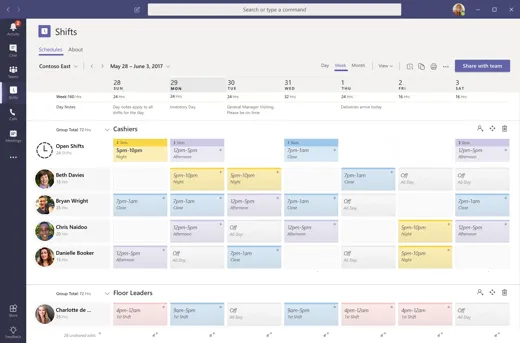
Shifts. Shifts in Teams gives crews mobile schedules. Workers can request open shifts, swap shifts, offer shifts, ask for time off and clock in and out. It suits crews on rotation and emergency cover.
Walkie Talkie. Walkie Talkie is push-to-talk over Wi-Fi or cellular on Android and iOS, and it uses Teams channels. It works with standard and private channels, and shared channels are not supported. It is included in paid Teams licenses, but it needs connectivity, so check coverage on remote sites before you promise it.
Approvals. The Approvals app needs Dataverse in the default environment. Team owners can create approval templates, which suits change orders, permits and sign-offs.
Subcontractors, architects and clients: guests, shared channels or private channels
Multi-party collaboration is the hard part of governing construction teams. Teams offers three options, and they behave differently, per Microsoft’s guest access, shared channels and private channels documentation:
| Guest access | Shared channel | Private channel | |
|---|---|---|---|
| Who joins | External users as Guest accounts in Microsoft Entra ID | Users from another tenant via Microsoft Entra B2B direct connect | Members of your own team only |
| Setup | Added by team owners or admins; can take up to 12 hours | Both organizations configure cross-tenant access | Access limited to channel members |
| Who creates it | Team owners or admins add guests | Only team owners | Any team owner or member by default (not guests), unless a policy blocks it |
| Limits | Controllable per team with sensitivity labels | Guests can’t be added to shared channels | Own SharePoint site; no Planner or Forms tabs |
| Typical use | An architect or subcontractor who works in your team | Joint delivery with a contractor that has its own tenant | Budget and legal discussion |
A common pattern is a standard team for internal work, a private channel for commercial topics, and either guests or a shared channel for the external workstream. The commercial channel and the subcontractor channel should never be the same channel.
One team per site at scale
A contractor with dozens of live sites doesn’t want to create each team by hand. Frontline deployment can deploy teams at scale with flexible membership: it creates per-location teams with membership synced from a Microsoft Entra attribute, and a template sets the channels and apps. It needs F1, F3, E3 or E5 licenses, or Microsoft Entra ID P1.
For scripted rollouts, Microsoft documents deploying Teams at scale with PowerShell. The New-CsBatchTeamsDeployment cmdlet supports up to 500 teams per batch and 25 users per team per batch. Both approaches suit standing site teams better than one-off bids, so decide per project type which route fits.
Naming site teams
A good name tells everyone, and every search, which site a team belongs to. Microsoft’s Entra group naming policy lets you add a prefix, a suffix or both, using attributes such as Department, Company, Office, StateOrProvince, CountryOrRegion and Title. Plan around these facts:
- It requires a Microsoft Entra ID P1 license (Microsoft Entra ID was formerly Azure AD).
- The combined name is limited to 63 characters.
- It isn’t applied to existing groups until they are renamed.
For example, a “SITE-” prefix and an [Office] suffix around the name the user types turn “Riverside Tower” into SITE-Riverside Tower-Lyon. Our naming convention guide covers the options in more depth.
Closing out a project: archive, read-only and expiration
When a project reaches handover, archive the team. In the Teams admin center you can archive it and choose to make the connected SharePoint site read-only, as described in Microsoft’s archive or delete a team documentation. Archived teams can be restored, and Microsoft recommends archiving before deleting. That matters for warranty claims, where you need the records months later.
Treat the group expiration policy with caution. It needs Microsoft Entra ID P1, can delete inactive groups, sends renewal notices at 30, 15 and 1 days, and lets you restore a deleted group within 30 days. On a long-running site where the team goes quiet between phases, it can delete a workspace you still need. Align it with your retention obligations before you switch it on.
How to build a governed construction template with nBold
Native templates stop at channels, tabs and apps. nBold adds the layer construction firms need: its templates capture channels (standard, private and shared), tabs and apps, a Planner board with tasks, the connected SharePoint site with its libraries, Lists, OneNote, Forms and files. Governance is set per template: naming conventions, sensitivity labels, an optional approval workflow, audience targeting and a membership policy with pre-defined owners and members. Lifecycle management then handles inactivity: owner notification, then archive or delete, per template. See the Teams templates overview and how nBold applies it to construction and engineering.
To build one, install the nBold app from AppSource. You need admin rights to manage it.
- Create your original team, Construction Site - Template, with the channels, files, Planner board and private Commercial channel you want every project to start with.
- In the nBold tab, open Catalog, then select +New template.
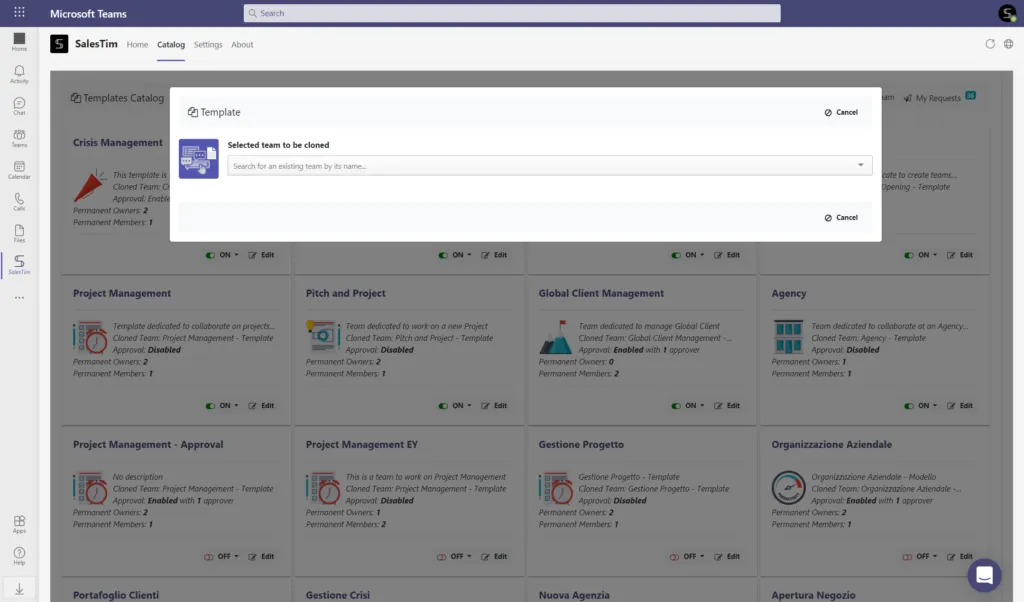
- Pick the team you just created as the source.
- Configure the policies and click Save.
Four of those policies matter most for construction:
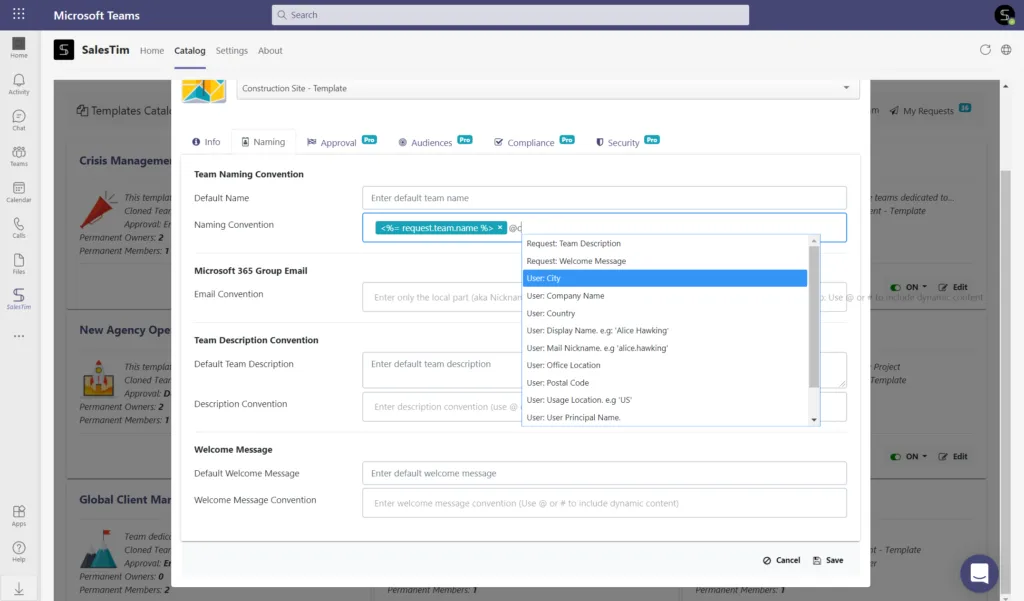
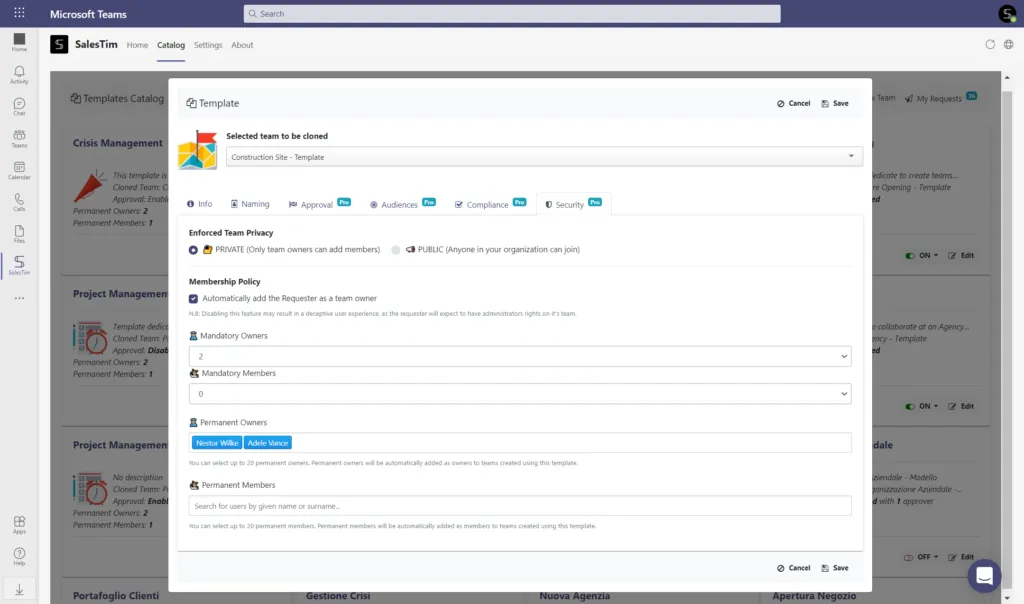
- Naming convention. Fixed and dynamic attributes from Microsoft Entra ID let you apply a pattern such as the project name, “Construction site” and the user’s city.
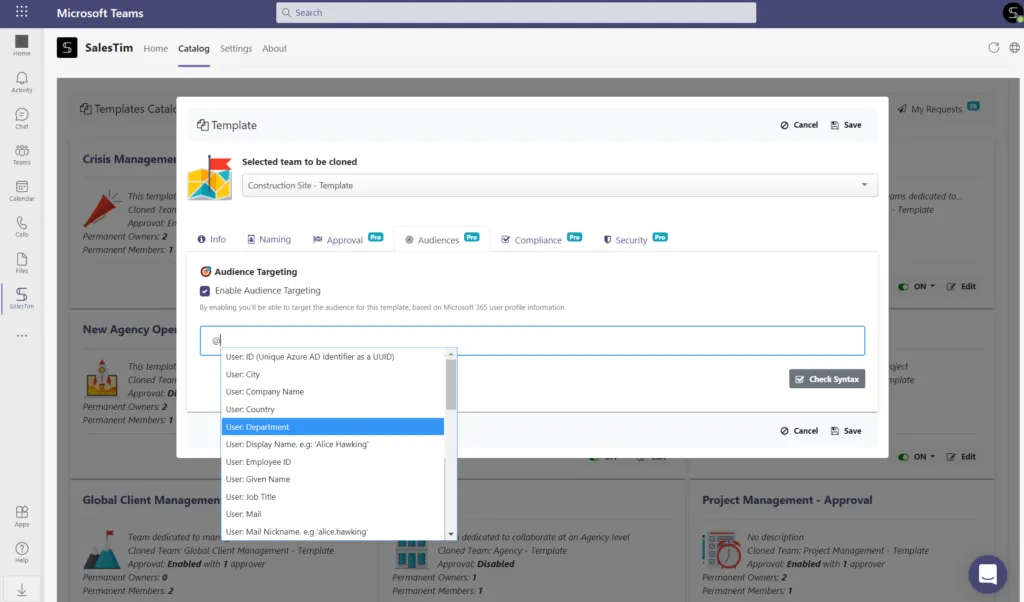
- Audience targeting. Show the construction template only to project managers and site engineers, and keep a bid template for estimators.
- Approval workflow. Route each new site team request to a project director, so no workspace appears without sign-off.
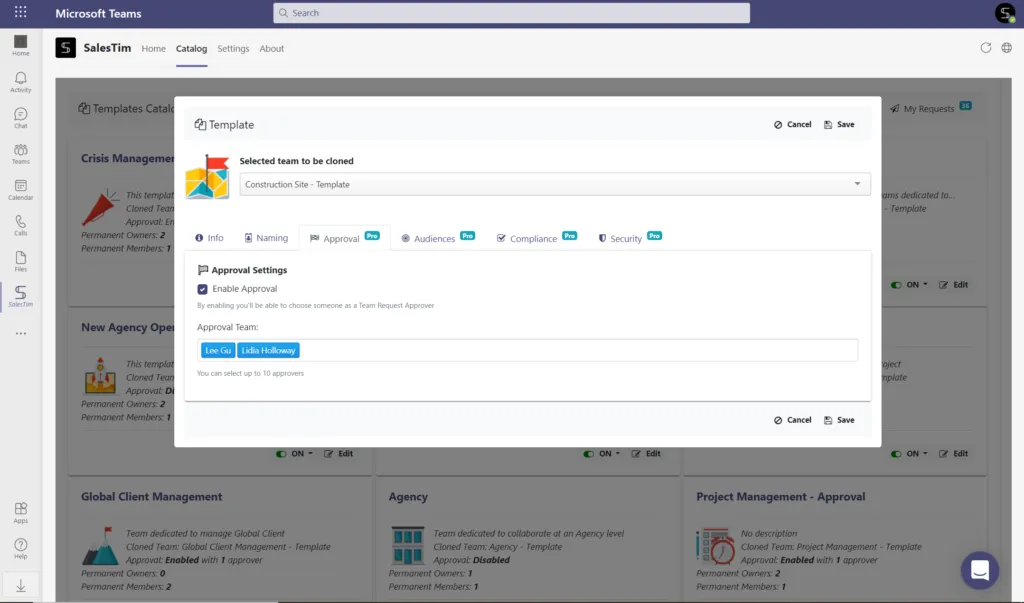
- Owners and members. Add the project manager and the quality assurance manager as required owners, so every site team has them and no team is created without an owner.
To create a site team, users go to the Home tab, select +New team and choose the template.
If you’d like to see how this would work for your projects, Book a demo and we will walk through it with you.