Microsoft Teams Template for Consulting Proposals
Microsoft Teams has no prebuilt consulting template, so the practical answer is a custom one: a reusable team with a proposal room structure (channels for the pursuit, a private channel for internal pricing, a place for the proposal files) that you convert into the engagement workspace when you win. Native templates carry channels, tabs and apps but not members or files, so most firms add a governance layer on top.
Teams is where consulting work already happens. As of October 2023, Microsoft reported more than 320 million monthly active Teams users, and Satya Nadella said on the same earnings call that “Teams has also become a multiplayer canvas for business process.” For a consulting firm, that process starts well before the engagement letter: every pursuit needs a workspace, and every workspace is a governance decision.
Quick fix: In the Teams admin center, go to Teams > Team templates, duplicate Manage a Project (or create a template from an existing proposal team), and add your proposal channels. Then decide separately how members, files, private channels and naming are handled, because native templates don’t copy them.
This guide is for M365 and Teams admins and governance owners at consulting firms. For the day-to-day collaboration side, see how to use Microsoft Teams in business consulting.
Does Microsoft Teams have a consulting template?
No. There is no consulting or proposal template among the prebuilt options. The closest is Manage a Project, which includes General, Announcements, Resources and Planning channels, as described in Microsoft’s Teams templates documentation. Prebuilt templates can’t be edited, only duplicated.
To build a custom one, open the Teams admin center and go to Teams > Team templates > Add. You can start from scratch or create a template from an existing team, which is usually faster: build a “Proposal Room - Template” team, then base the template on it. See Microsoft’s steps to create a team template. A new template can take up to 24 hours to appear for users.
You also control visibility. Under Teams > Templates policies you can hide templates from users, but Microsoft notes that templates policies can’t be assigned by group and that changes can take up to 24 hours.
What native Teams templates don’t carry
Microsoft documents what a native template can and can’t include:
| Included in a native template | Not included |
|---|---|
| Name, description, visibility | Team membership |
| Team settings (member, guest, @mention) | Team picture |
| Channels (with auto-favorite) | Channel settings |
| Installed apps | Connectors |
| Pinned tabs | Files and content |
| Private and shared channels |
The limits are 15 channels, 20 tabs per channel and 50 apps per template. For a proposal room, the gaps matter: the proposal template, the firm’s credentials deck and the pricing model are files, the pursuit lead and partner are members, and the internal fee discussion belongs in a private channel. None of those travel with a native template. Planner tasks are not on the included list either, so a pre-built task list needs a different mechanism. The nBold section below covers it.
How to structure a proposal room
A proposal (or pursuit) room is a team created when you decide to pursue an opportunity. Keep the channel set small and named by purpose. One example layout:
- General: announcements and quick coordination.
- Proposal: drafts, review comments and the shared proposal document.
- Client intelligence: background research on the account and stakeholders.
- Q&A and clarifications: questions from the client and your answers.
- Commercials (private channel): internal fee strategy, pricing and margin discussion, limited to the partner and the pursuit lead.
The private channel is the part to get right. Microsoft’s private channels documentation explains that each private channel has its own SharePoint site and that only channel members can access it, so team owners don’t see it unless they are members. That is what you want for internal pricing. Two limits to plan around: private channels don’t support Planner, To Do, Stream or Forms tabs, and they count toward the 1,000-channel limit per team.
Keep the pursuit checklist (go/no-go, staffing, review dates, submission deadline) in a Planner tab on a standard channel, since the Planner tab works in standard channels only. Store the proposal files in the team’s SharePoint document library so the history carries over if you win.
If your proposals start from a CRM opportunity rather than a manual request, see how to build deal rooms in Teams from Salesforce and Teams channels for deal rooms.
From proposal room to engagement workspace
Most firms create a new team on a win and copy files across. That works, but it breaks the history and creates two places to look. A cleaner approach is to design the proposal room so it can become the engagement workspace:
- On a win: rename the team to follow your engagement naming pattern, add the delivery team, and add the channels the engagement needs (workstreams, deliverables, client updates). Private channel membership is separate from team membership, so people you add to the team won’t see the Commercials channel unless you add them to it. Delete it once pursuit pricing is no longer needed. Planning the transition up front means the proposal files and Q&A trail stay with the team.
- On a loss: archive the room. Archiving keeps the content for reference and lets you restore the team later if the client comes back. See the closing section below.
Whichever route you choose, write it down as a lifecycle: proposal, decision, engagement, archive. A template for each stage is easier to govern than a single template stretched to cover all of them.
Guests, shared channels or private channels for client collaboration
Clients are the reason consulting teams are harder to govern than internal ones. Teams offers three ways to bring them in, and they behave differently, per Microsoft’s guest access, shared channels and channel comparison documentation:
| Guest access | Shared channel | Private channel | |
|---|---|---|---|
| Who joins | Client users as Microsoft Entra guest accounts | Users from another tenant via Microsoft Entra B2B direct connect | Members of your own team only |
| Works in | Standard and private channels (not shared channels) | The shared channel itself | Inside your team |
| Setup | Guest access enabled and the guest invited | Both organizations configure cross-tenant access settings | Access limited to channel members |
| Who creates it | Team owners add guests | Only team owners | Any team member, unless a policy blocks it |
| Files | The team’s SharePoint site | Its own SharePoint site | Its own SharePoint site |
| Typical use | A client sponsor in a proposal or project team | Joint delivery with a client that has its own tenant | Internal pricing and staffing discussion |
A common pattern for consulting firms is a standard team for internal work, a private channel for commercial discussion, and either a guest or a shared channel for the client-facing workstream. Remember that the “private channel for pricing” and the “client channel” should never be the same channel.
Keeping clients separate: sensitivity labels and information barriers
Two Microsoft Purview features address client confidentiality at different levels.
Sensitivity labels apply to teams, groups and sites. Per Microsoft’s documentation, a label can set privacy, guest access, external sharing, access from unmanaged devices and who can be invited to shared channels. Shared channels inherit the parent team’s label. Content inside the team does not inherit the label, so labels govern the container, not each file. A sensible approach is a label per confidentiality tier, for example one for ordinary engagements and one that blocks guests and external sharing for restricted work.
Information barriers go further. Microsoft Purview information barriers use two-way policies to block chat, adding people to a team, file sharing and similar actions between defined segments of your organization. Microsoft’s documentation cites the scenario of preventing one client’s data from being accessed by people at the same firm who serve a different client, which is the consulting use case in one sentence. Check the documentation for prerequisites and licensing before you plan a rollout.
Naming proposals and engagements
A name tells everyone, and every search, what a team is. Microsoft’s Entra group naming policy lets you add a prefix, a suffix or both. A few facts to plan around:
- It requires Microsoft Entra ID P1 for each unique user who is a member of a Microsoft 365 group.
- Attribute-based prefixes and suffixes are limited to [Department], [Company], [Office], [StateOrProvince], [CountryOrRegion] and [Title].
- The combined name is limited to 63 characters, and you can block up to 5,000 words.
- It isn’t retroactive, so existing teams keep their names.
- You configure it in the Microsoft Entra admin center under Groups > Naming policy.
Because the native policy is tenant-wide and attribute-limited, it can’t tell a proposal from an engagement. A pattern you could use as an example is a PROP- prefix for pursuits and an ENG- prefix for engagements, followed by the client and the project name. Enforce it with a template-level convention. Our Teams naming convention guide covers the options.
Controlling who can create proposal and engagement teams
If anyone can create a team, you will find proposal rooms with no naming, no label and no owner. Microsoft documents how to manage the creation of Microsoft 365 groups: you designate one group of allowed creators through Microsoft Graph PowerShell (the EnableGroupCreation and GroupCreationAllowedGroupId settings), and Microsoft Entra ID P1 is required for the admin and the members of that group. See also our guide to restricting team creation.
Restricting creation only works if there’s an easy alternative. That means a small set of approved templates, exposed through the templates policies described above, or a self-service catalog with an approval step. Without that, restricted creation becomes a ticket queue.
Closing an engagement: archive, read-only and expiration
When an engagement ends, archive the team. In the Teams admin center, go to Teams > Manage teams, select the team and choose Archive. Microsoft’s archive or delete a team documentation lets you make the SharePoint site read-only at the same time, and archived teams can be restored. Microsoft recommends archiving before deleting.
Treat the group expiration policy with caution. Microsoft documents that it is off by default, can be set to 180 days, 365 days or a custom period of at least 30 days, sends owner emails at 30, 15 and 1 days before expiry, and automatically renews groups that are active. It requires Microsoft Entra ID P1. For consulting, a short expiration can delete a dormant proposal room or a finished engagement that you are still contractually required to keep. Align it with your retention obligations before you switch it on.
How to build a governed consulting template with nBold
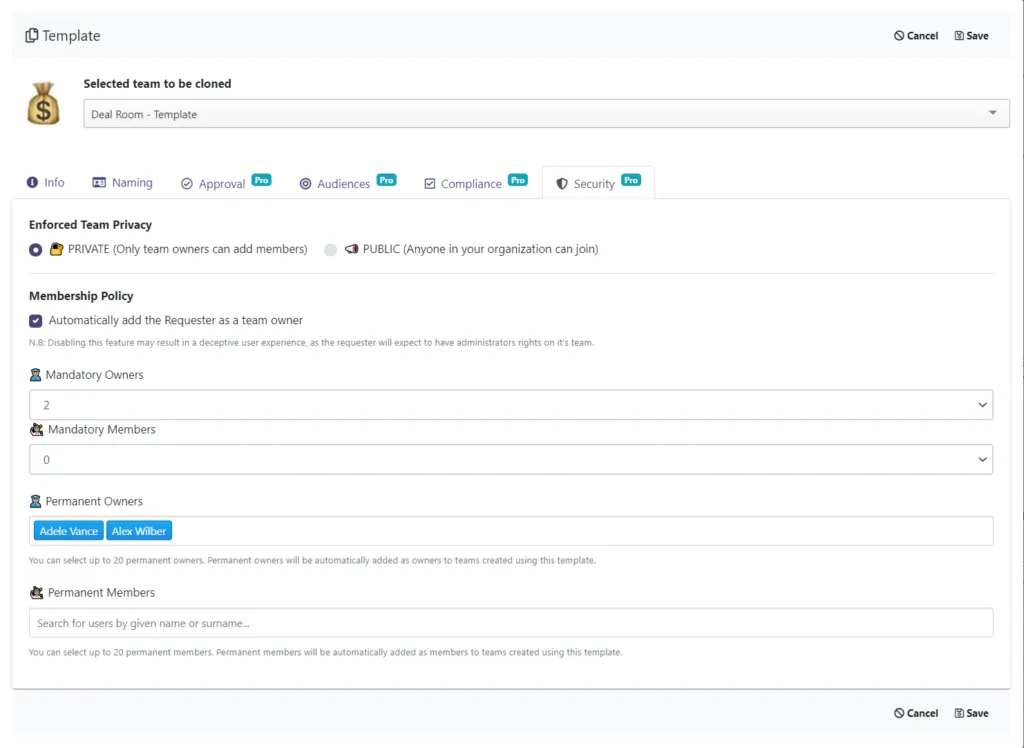
Native templates stop at channels, tabs and apps. nBold adds the layer consulting firms need: its templates capture channels (standard, private and shared), tabs and apps, a Planner board with buckets and tasks, and the connected SharePoint site with its libraries and folders. Governance is set per template: naming conventions, sensitivity labels, permanent owners and members, an optional approval workflow and audience targeting. Users then request a workspace from a self-service catalog. See the Teams templates overview and how nBold applies it to consulting firms.
To build one, install the nBold app from AppSource. You need admin rights to manage it.
- Create your original team, for example Proposal Room - Template, with the channels, files, Planner board and private Commercials channel you want every pursuit to start with.
- In the nBold tab, open Catalog, then select +New template.
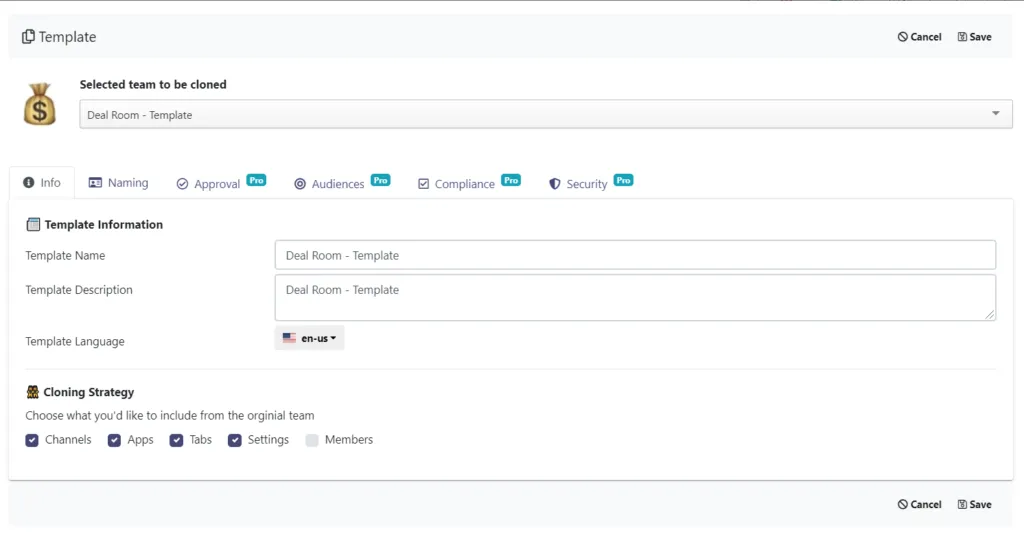
- Pick the team you just created as the source.
- Configure the policies and click Save.
Four of those policies matter most for consulting:
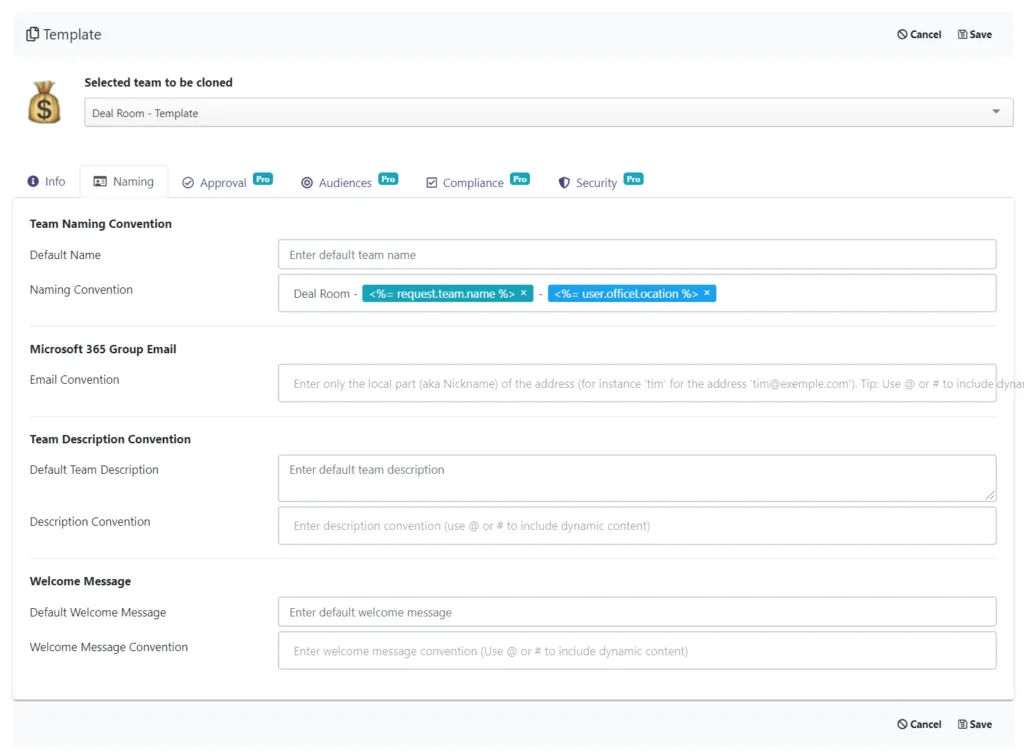
- Naming convention. Fixed and dynamic attributes from Microsoft Entra ID (formerly Azure AD) let you apply an example pattern such as PROP, the client and the user’s office.
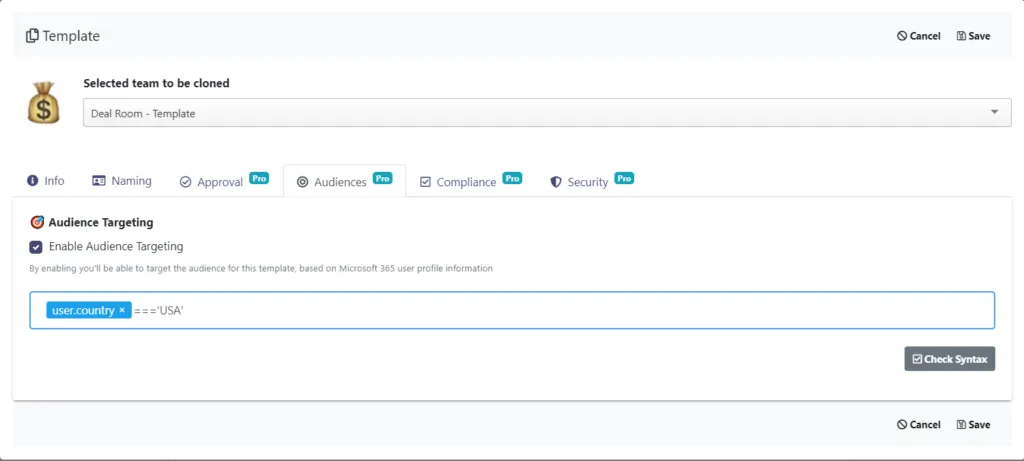
- Audience targeting. Show the proposal template only to the business development team, or a restricted engagement template only to a given practice.
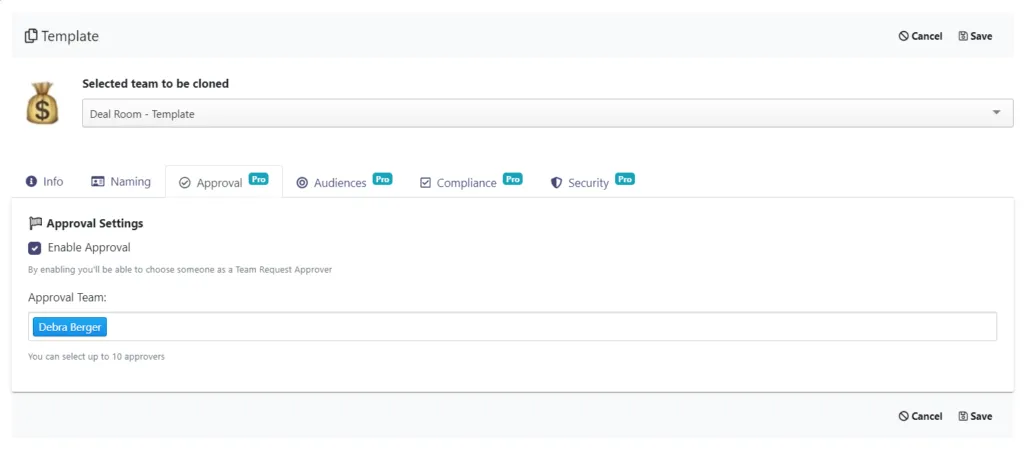
- Approval workflow. Route each new team request to the people who should sign off, so pursuits are visible to your governance owner from day one.
- Permanent owners and members. Add the partner or engagement director automatically as an owner, so no team is created without one.
To create a proposal room, users go to the Home tab, select +New team and choose the template.
If you’d like to see how this would work for your firm, Book a demo and we will walk through it with you.