10 Microsoft 365 Copilot Use Cases and How to Enable Them
Microsoft 365 Copilot has moved past the demo stage: Microsoft reported it “reached over 30 million paid seats” in its FY26 Q4 earnings release (29 July 2026). But the question that lands on an IT admin’s desk isn’t “what can Copilot do?” — it’s which use cases are worth licensing, what each one actually requires, and what has to be cleaned up first. This guide answers all three.
Start here: the highest-value Copilot use cases for most Microsoft 365 tenants are meeting recap in Teams, inbox triage in Outlook, and question-answering over a curated SharePoint library. All three need a Microsoft Copilot add-on license on top of a qualifying Microsoft 365 plan — and all three expose existing permission problems, so run a SharePoint oversharing review before you assign a single seat.
What every Copilot use case needs first
Two things decide whether a use case in this list is available to a given user: the license, and whether the content it grounds on is in order.
Licensing. Microsoft 365 Copilot is an add-on assigned per user on top of a qualifying plan. Microsoft’s licensing documentation lists the prerequisites — Microsoft 365 E7, E5, E3, F1 and F3, the Business plans, various Office 365, Teams, Exchange, SharePoint and OneDrive plans, plus Microsoft Planner Plan 1 (formerly Project Plan 1), Project Plan 3 and Project Plan 5. On Microsoft’s pricing page, the Microsoft 365 Copilot Business add-on is listed at $18.00 per user/month paid yearly — promotional pricing between 1 July and 31 December 2026, reduced from $21.00 — or $25.20 billed monthly. Bundled options exist too: Business Standard with Copilot at $23.50 and Business Premium with Copilot at $32.00 per user/month, paid yearly.
The distinction that trips up most rollouts is Copilot Chat:
| Experience | What it grounds on | What it costs |
|---|---|---|
| Web-based Copilot Chat | Results from the internet | ”Automatically included with an eligible Microsoft 365 subscription at no extra cost” |
| Work-based Copilot Chat | ”Results that the Microsoft Entra work or school account can access” | Requires a Microsoft Copilot license |
| Copilot in Word, Excel, PowerPoint, Outlook, Teams | Your files, mail and meetings via Microsoft Graph | Requires a Microsoft Copilot license |
| Agents (SharePoint, custom) | The knowledge sources you point them at | Copilot license, or pay-as-you-go billing for unlicensed users |
Grounding quality. Copilot answers from Microsoft Graph, scoped to the signed-in user. Microsoft’s architecture documentation is explicit: “Operating inside the Microsoft 365 service boundary doesn’t grant Copilot tenant-wide visibility. Data access is always scoped to the signed-in user’s permissions.” That is a real control — but it also means Copilot inherits whatever your permission model already allows. Content a user could technically open but would never have found by browsing now arrives in a summary. Copilot doesn’t create oversharing; it makes it legible.
10 Microsoft 365 Copilot use cases
1. Meeting recap and action items in Teams
The most-used and easiest-to-prove use case. Copilot summarizes the discussion, attributes who said what, flags agreement and disagreement, and proposes follow-up tasks — during the meeting for participants who joined late, and after it for anyone catching up.
What it needs: a Microsoft Copilot add-on license, plus transcription. In the Teams admin center, go to Meetings > Meeting policies > Recording & transcription and set the Copilot value. The options are On, On with saved transcript required (the default), On with transcript saved by default, and Off — or Set-CsTeamsMeetingPolicy -Identity <policy name> -Copilot EnabledWithTranscript in PowerShell. Organisers then choose During and after the meeting or Only during the meeting per meeting.
Admin note: if your transcription policy is off and the organiser picked “During and after the meeting”, licensed users can’t interact with Copilot at all unless someone starts a transcript. Copilot in Teams meetings is also unavailable in end-to-end encrypted meetings and not currently available in GCC High. If Copilot is greyed out for a user who should have it, work through the common Copilot licensing and policy failures.
2. Inbox triage and drafting in Outlook
Copilot summarizes long mail threads, surfaces the questions nobody answered, and drafts replies you can tune for tone and length. For anyone managing a shared or high-volume mailbox, this is the use case that pays for itself first.
What it needs: a Copilot license and a work or school account. Microsoft’s Copilot in Outlook FAQ states that chatting with Copilot in Outlook “is only available if you’re using a work or school account” — plan pilots around licensed work identities rather than personal ones.
3. Analysing spreadsheets with the Analyst agent
Ask questions of a workbook in plain language and get back PivotTables, charts and summary reports without writing formulas. For deeper work — statistical comparison across sheets, reasoning over a messy export — Microsoft’s Analyst agent is the tool built for it, and Microsoft’s own guidance says Analyst “is better suited for Microsoft Excel related tasks” than the Researcher agent.
What it needs: a Copilot license; the workbook saved to OneDrive or SharePoint. Analyst appears under Tools in Copilot Chat.
Admin note: Analyst and Researcher are first-party experiences that sit in the core Copilot chat experience, so they don’t fall under agent-level settings — but admins can block them specifically if a compliance review requires it.
4. Drafting and rewriting in Word
Draft with Copilot turns a prompt plus reference files into a first draft, then rewrites for tone, reformats content into tables, and answers questions about the document. The realistic framing is “first draft in minutes, not final copy” — the review step doesn’t disappear.
What it needs: a Copilot license; source files in OneDrive or SharePoint so they can be referenced with /.
Admin note: if the source file carries a sensitivity label, Copilot in Word, PowerPoint and Outlook inherits that label onto the new content, including its protection settings. When several files are referenced, the highest-priority label wins. Worth confirming your sensitivity labels are in place before this use case scales.
5. First-draft decks in PowerPoint
Copilot builds a deck from a prompt, an existing Word document, or a branded template, and generates speaker notes per slide. Sales and delivery teams get the most out of it when a corporate template exists to constrain the output.
What it needs: a Copilot license; a template in place if you care about brand consistency.
6. Finding work across Microsoft 365
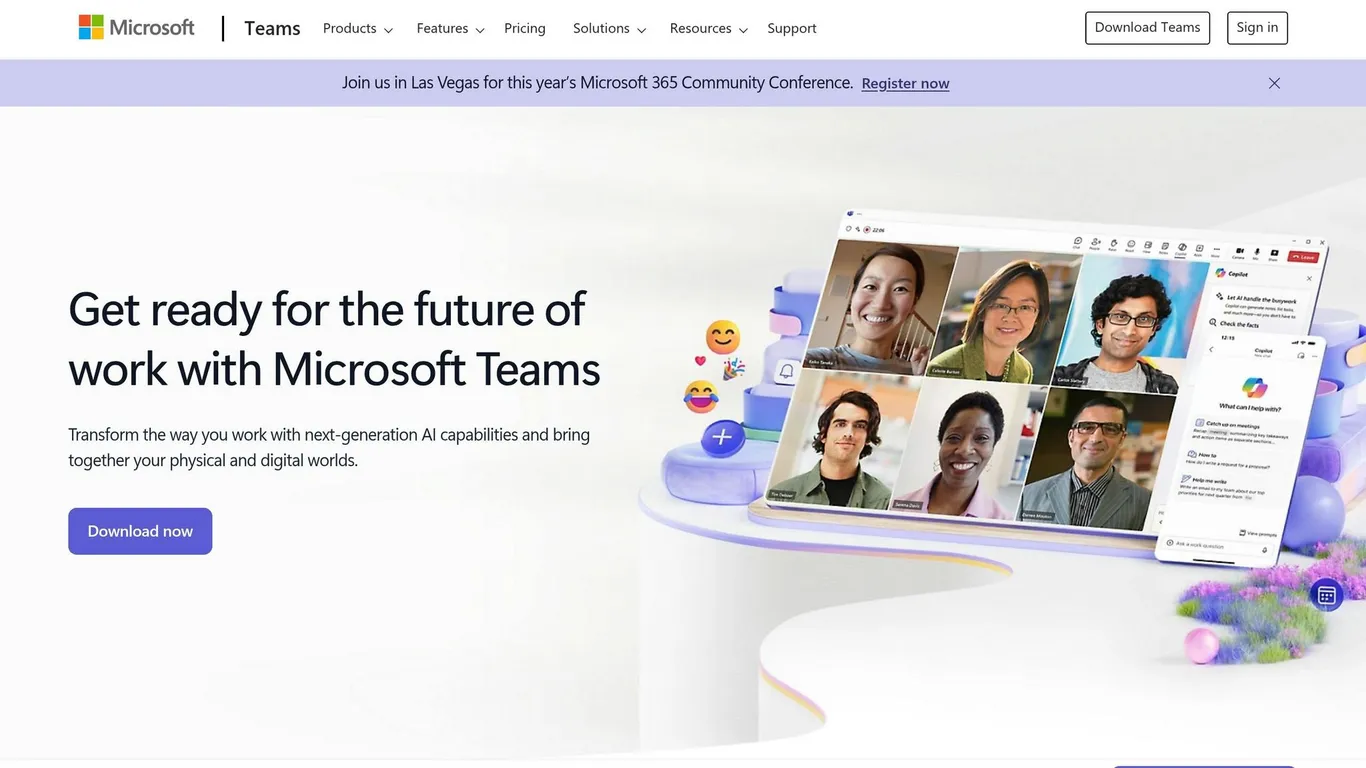
The use case admins consistently underrate. Copilot uses Microsoft Graph to connect mail, chats, meetings and documents, so “what’s the current status of the Contoso migration?” returns a synthesized answer with citations instead of four separate searches. You can extend this beyond Microsoft 365 with Graph connectors that pull Salesforce and ServiceNow into Copilot’s index.
What it needs: a Copilot license for work-grounded results. Web-only chat won’t do this.
Admin note: this is the use case that surfaces oversharing fastest. See the governance section below before enabling it broadly.
7. Deep research with the Researcher agent
Researcher handles multi-step questions that a single chat turn can’t — competitive analysis, a market summary, a synthesis across many internal documents plus the web. Microsoft describes it as “an advanced AI Copilot agent in Microsoft 365 designed to tackle complex, multi-step questions by acting as a deep research assistant,” and it cites its sources.
What it needs: a Copilot license. Researcher is preinstalled and pinned; users can’t remove it.
Admin note: three constraints worth knowing before you promise it to a business unit. There’s a hard limit of 25 queries per user per month. Responses take from under five minutes for simple queries to 10 to 45 minutes for complex ones. And there’s currently no reporting or dashboard for Researcher and Analyst usage, so you can’t measure adoption of these two the way you can measure the rest. Web grounding follows the tenant-level web search toggle — there’s no per-site allow or block list. Details are in Microsoft’s Researcher FAQ.
8. Question-answering over a SharePoint library
Point an agent at a document library — HR policies, bid templates, product specs — and let people ask it questions instead of opening ten PDFs. Agents in SharePoint need no activation, and they answer according to each user’s own permissions: if a user can reach the agent but not the library behind it, restricted content simply won’t appear in their answers.
What it needs: a Copilot license, or pay-as-you-go billing assigned through a security group for users without one — which makes this the cheapest way to give an unlicensed population a taste of Copilot.
Admin note: agents are .agent files, so file permissions govern who can open or edit them. There’s a practical guide to scoping departmental agents safely if you’re standing these up per team.
9. Plan and task management in Planner
Describe a project and Copilot drafts the plan structure — tasks, buckets, assignments — then answers questions about deadlines and workload as work progresses.
What it needs: a Copilot license, plus the right Planner or Project plan. Note the rename: Microsoft’s licensing docs now list Microsoft Planner Plan 1 (formerly Project Plan 1) alongside Project Plan 3 and Project Plan 5. If you’re working out which capabilities sit behind which SKU, we’ve mapped Planner premium licensing in detail.
10. Custom agents for a repeatable team process
The use case that has changed most in the last year. Instead of relying on generic Copilot, teams build agents around a specific process — onboarding, bid qualification, ticket triage — using Copilot Studio or Agent Builder, then publish them for others.
What it needs: a Copilot license; a governance decision about who can build and publish.
Admin note: treat this as a lifecycle, not a feature. In the Microsoft 365 admin center, agents live in the Agent Registry, and agents submitted for the Agent Store go through an approval process before users can access them — you can review requests, publish or reject, and block agents that turn out to be unsafe or non-compliant. Microsoft Agent 365 is positioned as the broader control plane for agents across the estate. If you don’t already know how many agents exist in your tenant, start by auditing agents and Graph connectors tenant-wide.

Do this before you roll Copilot out
Every use case above grounds on content your users can already reach. That makes permission hygiene the actual prerequisite — the work that determines whether a rollout goes well.
- Restrict discovery on sites still under review. Restricted Content Discovery (RCD) keeps a site’s content out of organization-wide search and Copilot responses while owners review permissions, and removes AI entry points from the site — the Copilot button, AI actions, and the option to create agents. Set it in the SharePoint admin center under Sites > Active sites > [site] > Settings > Restrict content from Microsoft Copilot, or with
Set-SPOSite -Identity <site-url> -RestrictContentOrgWideSearch $true. Important: the older control, Restricted SharePoint Search, is retiring — Microsoft blocked new enablement on 31 July 2026 and directs customers to RCD. If your Copilot readiness plan still names RSS, it needs updating. - Run a data risk assessment. Microsoft Purview’s DSPM for AI provides data risk assessments that “help you identify and fix issues that could result in oversharing of data,” plus one-click policies to protect labeled items from Copilot processing and to detect risky AI usage.
- Know your controls. Microsoft groups these under the Copilot Control System, a framework with three pillars: security and governance, management controls, and measurement and reporting. It spans the Microsoft 365 admin center, the Power Platform admin center and Copilot Studio.
- Plan for agent sprawl before it happens. Agent creation is easy by design. Decide up front who can build, who approves, where agents are published, and how they’re retired — the same discipline that keeps Teams sprawl under control.
For the deeper version of this, see our guide to how Copilot protects enterprise data.
Is Microsoft 365 Copilot worth it?
The honest answer: the license isn’t what determines ROI — activation is. A seat nobody opens costs exactly the same as one used every day, so the metric that matters is weekly active users per licensed user, not seats purchased.
Microsoft’s own data points are useful but need reading carefully. In the 2026 Work Trend Index (5 May 2026), “66% of AI users we surveyed say AI has allowed them to spend more time on high-value work” and 58% “say they’re producing work they couldn’t have a year ago.” The same report breaks down what people actually do in Copilot chat: 49% of conversations support cognitive work, 19% working with people, 17% producing work, and 15% finding information.
The frequently quoted “70% more productive” and “68% better quality” figures come from a much earlier study — Microsoft’s November 2023 early-access research, based on a survey of 297 Early Access Program users alongside lab experiments. They’re self-reported perceptions from a small, self-selected group, not a current productivity benchmark. The most concrete finding from that same research is narrower and more useful: in a controlled study, Copilot users caught up on a missed meeting “nearly 4x faster (3.8), in 11 minutes and 13 seconds, compared to 42 minutes and 34 seconds.”
Customer evidence tends to land in the same range. Alex Pilsworth, Chief Technology Officer at Floww, told Microsoft: “Some teams are saving 10 to 20% of their time with Copilot because it’s assisting with meeting notes, generating to-do lists, summarizing complicated documents, and freeing us up so we can concentrate on the bigger tasks.” (Microsoft customer story, 29 May 2024.)
Practical approach: pilot two or three use cases from this list with a group that has a measurable before-and-after, track adoption with Copilot Analytics rather than anecdotes, and expand where usage holds. Our guide to measuring Copilot ROI with the Copilot dashboard covers the reporting side.
Where consistent workspaces fit in
One structural point that gets missed: Copilot’s answers are only as good as the content it grounds on. When every project team is built ad hoc — inconsistent channel structures, unpredictable document libraries, no naming standard, permissions set case by case — Copilot has to reason over a messy estate, and the permission review before rollout becomes far larger than it needed to be.
That’s the gap nBold addresses: it standardizes how collaboration spaces get created in Microsoft Teams, applying consistent structure, naming and governance policies at provisioning time rather than as cleanup later. Cleaner, more predictable workspaces mean fewer permission surprises when Copilot starts reading them. Details on our own security posture are on the platform security page.
FAQs
What license do I need for Microsoft 365 Copilot?
Copilot is an add-on assigned on top of a qualifying Microsoft 365 or Office 365 plan — including Microsoft 365 E7, E5, E3, F1, F3 and the Business plans, plus various Office 365, Teams, Exchange, SharePoint and Planner plans. It’s licensed per user, so you can start with a pilot group rather than the whole tenant.
Is Copilot Chat the same as Microsoft 365 Copilot?
No. Web-based Copilot Chat is included at no extra cost with an eligible Microsoft 365 subscription but only returns internet results. Work-based chat — grounded in your organization’s mail, files and meetings — requires a Microsoft Copilot license. Most of what people mean by “Copilot use cases” is work-grounded.
Do Copilot and its agents respect existing SharePoint permissions?
Yes. Microsoft documents that data access “is always scoped to the signed-in user’s permissions.” The practical catch is that Copilot makes existing oversharing visible fast — content a user could technically open but would never have found by browsing now surfaces in an answer. Review permissions before rollout, not after.
How do I stop Copilot surfacing content from a sensitive SharePoint site?
Use Restricted Content Discovery, a site-level setting that keeps content out of organization-wide search and Copilot responses while you review permissions, and removes AI entry points from the site. Restricted SharePoint Search, the older control, is retiring — new enablement was blocked on 31 July 2026.
Which Copilot use cases need transcription turned on?
Meeting recap and post-meeting Q&A. In the Teams admin center under Meetings > Meeting policies > Recording & transcription, the Copilot setting defaults to “On with saved transcript required”. If transcription is off and nobody starts a transcript, licensed users can’t use Copilot after the meeting ends.
Is Microsoft 365 Copilot worth the cost?
It depends on activation, not the feature list. An unused seat costs the same as a heavily used one, so track weekly active users per licensed user. Pilot a few use cases with a measurable before-and-after, then expand where usage holds up.